
Build a local working folder with the application, pending claims, office action, cited references, and relevant prosecution history. Add a response shell when you are ready to draft. Patent Toolkit collects and prepares these files; you choose which files to give an AI assistant and which service to use. Patent Toolkit does not connect to any AI service. Nothing leaves your computer until you upload it.
Use a service approved for the material you intend to share, and follow your firm’s policies for client information. A public application can still have confidential drafts, advice, and client instructions in its working folder.
This page is the manual version of the folder. Building a working file assembles the same set in one run, from a button on US App Info or a row in Recent Actions, and adds the action’s text, rejections and citations as plain files. Read on for the file-by-file routes, which also explain what the automated record contains and where each part comes from.
Set up the folders
Name the matter folder with your docket number and, if useful, the client
reference. For a family, keep shared references in an Art folder and give
each application its own folder. For example:
Example family/
  Art/
  US application/
    Application/
    Publication/
    Examination/
      1 - NFOA/
      2 - FOA/
  PCT application/
    Application/
    Publication/
    Examination/
Application holds the filed specification, claims, drawings, and any
preliminary amendment. Publication holds published versions. Number the
Examination folders in prosecution order and identify the action, such as
a non-final office action (NFOA) or final office action (FOA). Keep the action,
accompanying papers, working claim listing, recommendation, and response for
that round together. For a single application, use these folders directly
under the matter folder, with Art beside them.
Include document dates in filenames and retain publication numbers and kind codes for references. Label drafts and approved or filed versions distinctly; a response in a working folder does not by itself establish what was filed. See Choosing file names and formats.
Save downloads and generated files into these folders as you go. Files held in Activity are cleared periodically. The folder structure is yours to create; Patent Toolkit asks where to save its outputs.
Where each file comes from
Most files can be collected more than one way. The first route listed is usually the shortest.
| File | Routes |
|---|---|
| Publication or grant PDF | Application Info, publication row, Fetch then PDF or PDF+OCR; Text & Claims, Fetch then PDF; Bulk Downloader by number, with OCR PDFs. A WO publication: PCT App Info, Fetch PDF. US PDFs are unmetered on every route. |
| Publication text as a Word file | Application Info, publication row, Fetch then Word; Text & Claims, Fetch then Word; Bulk Downloader, Generate Word Files, which uses a Bulk Downloads allowance. The Application Info menu also offers HTML and Markdown. |
| Filed specification, claims, drawings, and ADS | Documents & Transactions lists the filed application as one PDF and in parts, a Word version where USPTO supplies one, and the drawings as a PDF, each with Fetch PDF or Fetch Word; Text & Claims with the as-filed source and Save HTML; Drawings, Choose a drawing set, Save PDF. |
| Office action, with what was mailed with it | Documents & Transactions, Fetch PDF or Fetch Word; Response Templates, the same two buttons for the selected Action; Recent Actions, Download Documents…, one ZIP per application with the cited-reference list, a Pro feature. |
| Cited references | Bulk Downloader, from the numbers on the cited-reference list. The Recent Actions package carries the list, not the copies. Non-patent literature comes from elsewhere. |
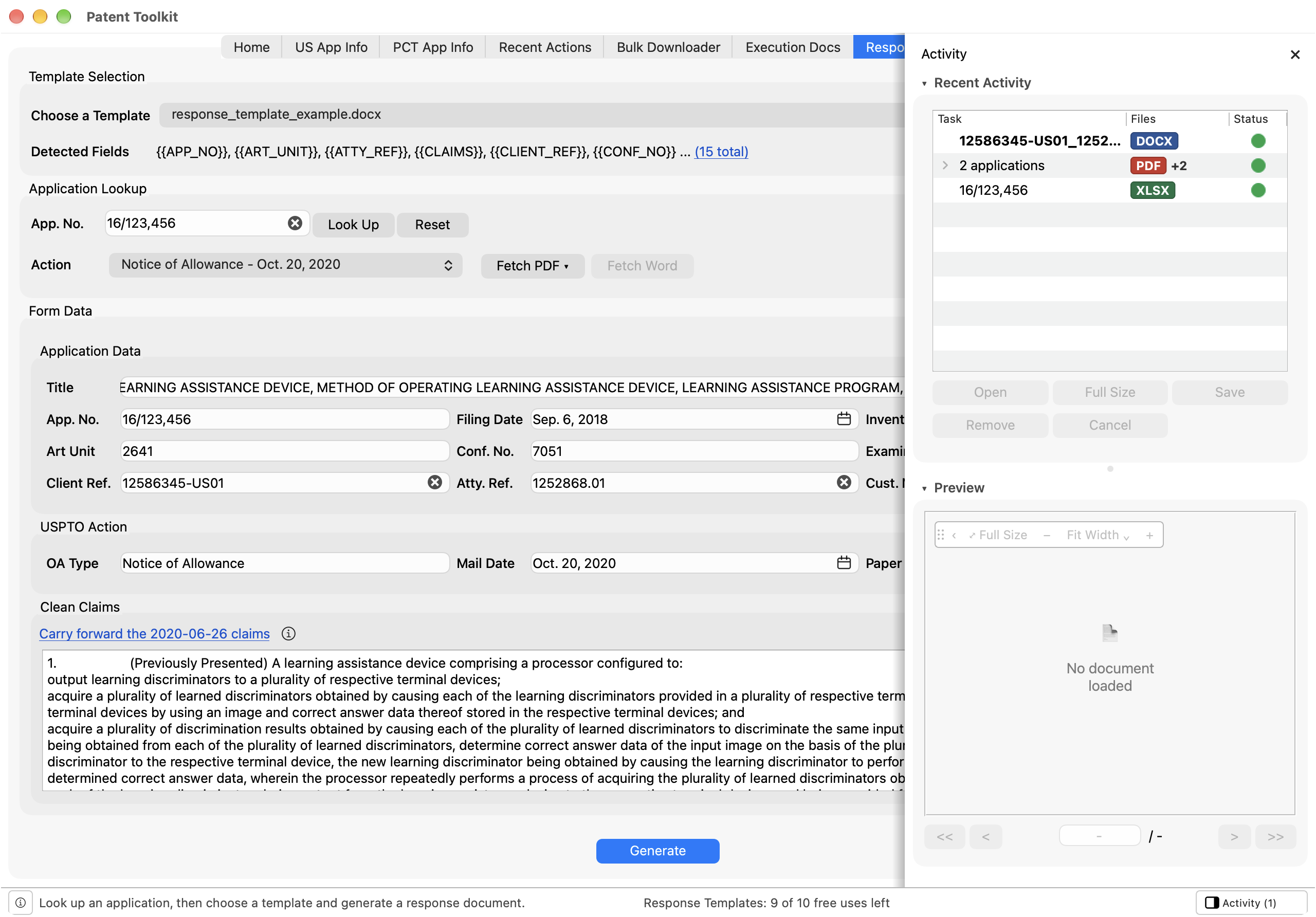
| Claim listing | Text & Claims: Clean copy for analysis, Prepare for amendment for drafting; Response Templates, Clean Claims, filled from the offered filed set. |
| Bibliographic record | Application Info field copy buttons; the Excel workbook in Activity; the Actions menu, as Excel or JSON. |
Collect the application and pending claims
Look up the application in US App Info and confirm the application number and bibliographic details in Application Info. Save the lookup’s Excel workbook from Activity if you want a local copy of those details and the available history.
- In Text & Claims, select the application as filed, where available,
and Full. Save then HTML preserves the displayed text, formatting, and
available images. Keep the filed source documents in
Application; Documents & Transactions offers their available PDFs and Word files. If you already have verified filed copies, use those. - For a published version, Fetch then Word builds a DOCX from available
USPTO publication data without OCR. Save it and the publication PDF in
Publication. Generated publication text is useful for reading and citation, but compare proposed amendment support with the filed application and any amendments to it. - In Drawings, select the relevant original or replacement set and use Save PDF. A replacement may contain only some sheets; collect the sheets needed to understand the disclosure. Published drawings can be kept with the publication.
- Return to Text & Claims and select the relevant dated claim set and Claims. Check it against the filed record, including preliminary and later amendments and whether they were entered. Leave Independent only off. Save or copy the complete listing into the current examination folder, identifying its source and date. Clean copy applies amendment markup and removes status identifiers; Prepare for amendment prepares the identifiers for the next amendment, where offered. Keep the filed listing with its markup as well.
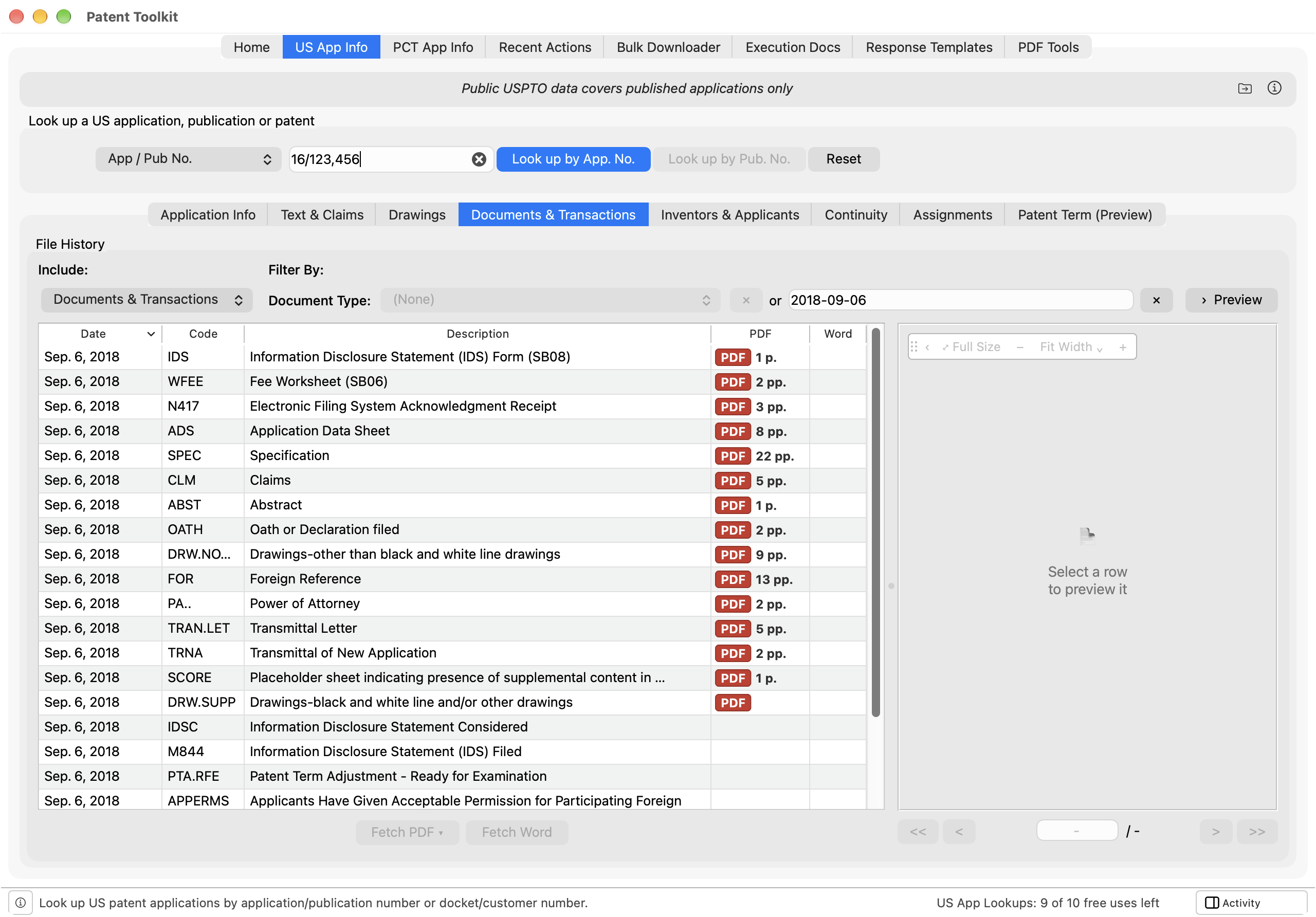
To list the papers filed on one day, type the date into the wrapper’s search
field as the record stores it, 2018-09-06 for a filing on Sep. 6, 2018.
The published claims may differ from the pending claims. A clean listing for analysis and a listing prepared for a new amendment serve different purposes; identify which you are giving the assistant.
For unpublished matters or unavailable source documents, retrieve the files from your records or Patent Center. Imported Patent Center XML can supply application details and mailing information, but does not supply unpublished document PDFs. See Looking up a US application, Reading and copying the claims, and Viewing the drawing sheets.
Collect the action and relevant history
In Documents & Transactions, select the office action and use Fetch PDF; its dropdown offers OCR. Use Fetch Word as well where USPTO supplies it. This retrieves a source Word version, rather than converting the PDF. Save both into the folder for that examination round.
Collect the accompanying cited-reference list and relevant appendices or interview summaries. For a later action, also collect the preceding action, filed response, amendments, and any intervening papers needed to understand the examiner’s position and the claims being examined. Keep earlier rounds in their own folders.
If you start from a customer-number search in Recent Actions, Download Documents… can retrieve the action and selected accompanying papers as one ZIP per application. This is a Pro feature. Select OCR in the download dialog, then extract the ZIP into the appropriate examination folder. The package excludes copies of cited references; collect those next. See Searching a customer number for recent actions and Reading the file wrapper.
Collect the references
Read the action as well as its cited-reference list to identify the documents needed for the rejections. In Bulk Downloader, enter the cited patent and publication numbers, one per line. Use the cited publication and kind code; another member of the same family may have different text or numbering.
Select Fetch PDFs, OCR PDFs, and Generate Word Files, then click
Fetch. Word generation uses available USPTO publication data and applies
to US publications. Check the resolved numbers and results, then open the
Save menu under the all-results label and choose Everything to save
the PDFs and available DOCX files into Art. Keeping both gives the
assistant readable text and a source PDF for checking passages and figures.
A batch with Word files, foreign publications, or US application numbers uses a Bulk Downloads allowance; US patent and publication PDF-only batches, including OCR, are unmetered. Retrieve non-patent literature separately. For foreign references, collect available English text and retain its source, scope, and translation label alongside the original. See Downloading patents in bulk and Retrieving English text for foreign references.
Prepare the drafting files
For a response shell, open Response Templates, choose your DOCX template, and look up the application. Check Action and its mail date; the default is the most recent recognized action.
Fill Clean Claims from the offered filed claim set, or paste your verified listing prepared for the next amendment. Check the source date, text, and status identifiers against the pending claims you collected. Automatic carry-forward does not establish that all later changes are included.
Click Generate and save the DOCX into the current examination folder. Check the caption, action details, claims, and any unfilled placeholders. Label it as a draft. Generation uses a Response Templates allowance on the Free plan. See Generating a response shell and Building DOCX templates.
Give the assistant a defined task
Add a short matter note identifying the application, action and mail date, pending-claim source, relevant earlier rounds, and the files to use. Identify any missing documents. For a family, say which application is being reviewed and why any related application is included.
For an assistant that can read local files, point it to the relevant folders. For an upload-based assistant, attach the needed files or add them to its project; check its supported formats and confirm it can read the contents. The local folder remains your record of the sources and drafts.
A useful first task is to identify the pending claims and summarize each rejection with claim numbers and citations to the action and references. Resolve missing sources or conflicting claim versions before asking for amendments or arguments. Ask for specification support for each proposed amendment, with express text distinguished from drawing support or inference.
Save the resulting analysis and drafts with the examination round. Check citations, quotations, claim changes, and support against the source files before using the work in a recommendation or response.
Troubleshooting
- A Word file is unavailable. The sources differ: the Fetch menus in Application Info and Text & Claims build the Word file from publication data, and Fetch Word in Documents & Transactions retrieves a USPTO-supplied Word version. Retrieve the PDF and add OCR where needed. A generated Word file should also be checked against the PDF for missing text, formulas, or tables.
- The assistant cannot read a file. Check its supported formats and try searching or copying text in the PDF. A scan may need OCR through Process PDFs. HTML exports can be opened in a browser and their text copied into a supported document. Check the result rather than assuming that an accepted attachment was read completely.
- The claims or drawings appear incomplete. Check the selected document, date, filters, and source notice. Retrieve the filed PDFs and intervening amendments; the latest available claim set or replacement drawing set may not be a complete statement of the current record.