
Use Bulk Downloader to retrieve patent and publication PDFs, add OCR, generate Word files for US publications, or collect available English text for foreign references.
US patent and publication PDF-only batches, including OCR, are free without signing in. A batch uses a Bulk Downloads allowance if it includes Word files, foreign publications, or US application numbers. The pane states whether the batch will count before you click Fetch.
Entering numbers
Enter numbers one per line or separate them with semicolons. Recognized numbers appear green; unrecognized entries appear red. Hover over a number to check how it was interpreted.
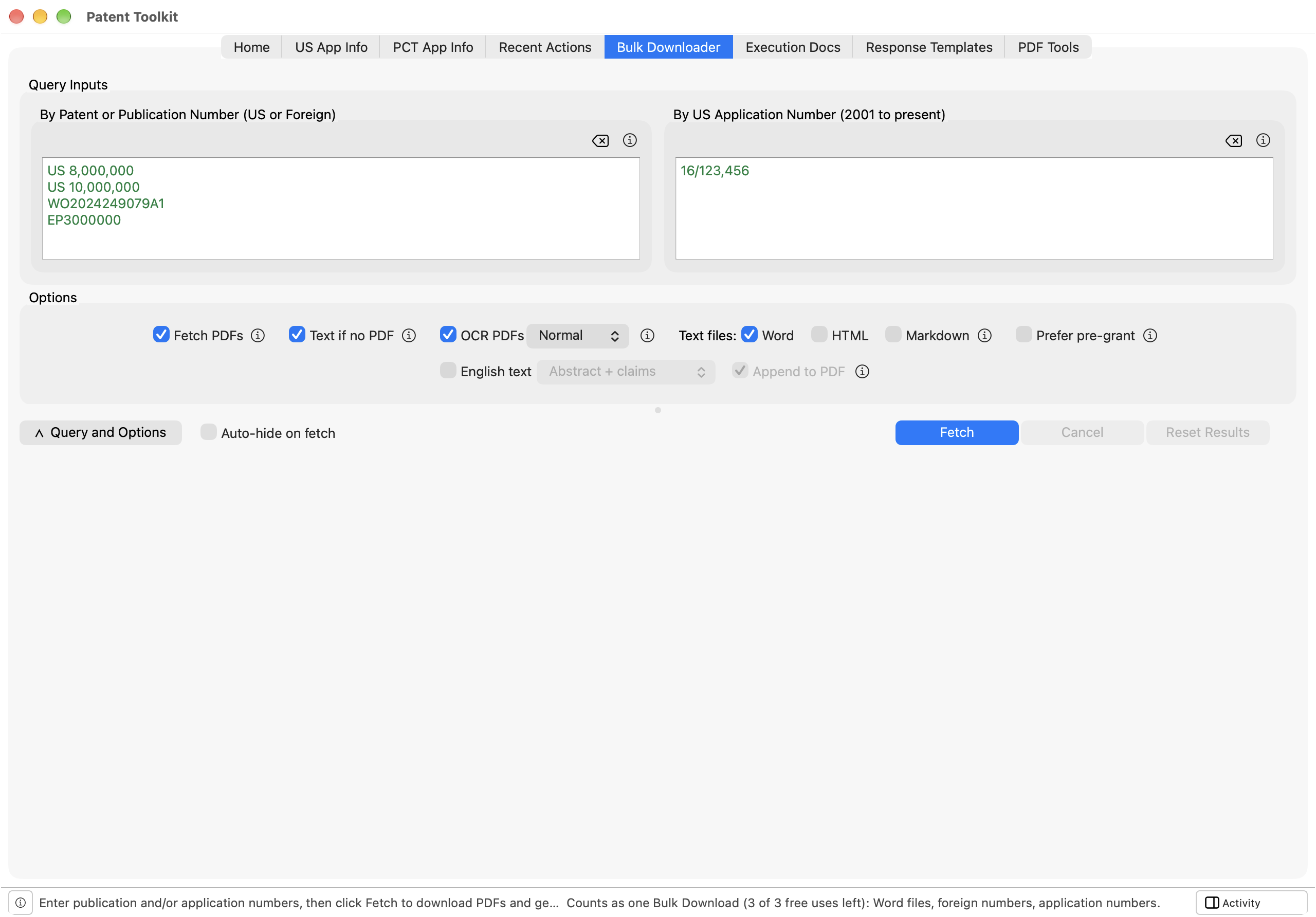
- By Patent or Publication Number (US or Foreign) accepts US patents
(
US 10,000,000), US publications (US 2021/0123456), and foreign publications (EP3000000B1). You can mix countries in one list. Numbers without a country code are treated as US. - By US Application Number accepts application numbers such as
16/123,456for applications from 2001 onward.
Both boxes can be used in the same run. Source coverage varies by country, document type, and year.
Choosing outputs
- Fetch PDFs retrieves source PDFs.
- OCR PDFs adds searchable text to scanned pages. It increases processing time and depends on the document language being supported.
- Text files builds one or more text documents from available USPTO publication data, in the forms ticked beside it. For an AI assistant, any of the three is a better source than the PDF, which the assistant must first convert or read through an OCR text layer; either step loses structure and may misread characters, where the text files carry the publication’s own text. Word is an editable DOCX. HTML is a single page for a browser, with every picture inside it. Markdown is the whole publication in the form best suited to handing it to an AI assistant: each claim under its own heading with its dependency stated, formulas as LaTeX, and a placeholder where each image sits. It is also the most economical form for that purpose: an assistant reads it as written, with no conversion step, and its tokens go to the text rather than to markup, so a publication costs markedly fewer tokens than the same text as HTML and far fewer than as a Word document. All three apply to US publications and are separate from PDF OCR.
- Prefer pre-grant chooses the pre-grant publication when an application number lookup could return either it or the granted patent.
For foreign references, English text retrieves the selected sections, such as the abstract and claims or fuller text, where available. Each output identifies its source and scope; machine-translated text is labeled. Check that information and review the text before using it.
Append to PDF adds the English pages to the source PDF. Otherwise, they are saved separately. Text if no PDF allows an English-text output when the source has text but no downloadable PDF.
Running and reviewing a batch
Click Fetch. The run appears in Activity, and you can continue working in another tab. The query area collapses during the run; clear Auto-hide on fetch to keep it visible. Cancel stops the remaining work and keeps completed outputs.
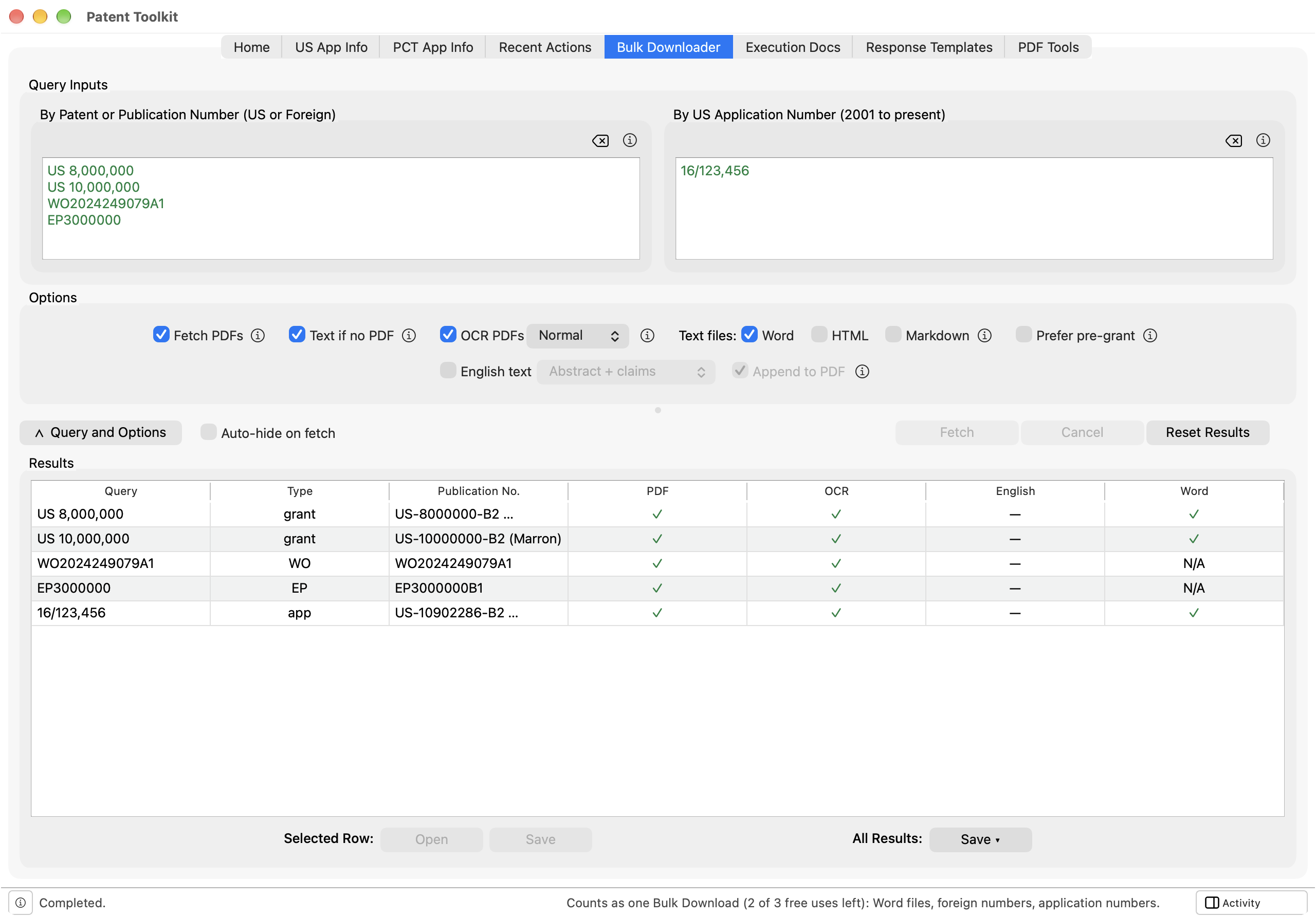
Each result shows the entered Query, resolved Type and Publication No., and the requested output columns: PDF, OCR, English, Word, HTML, and Markdown. Check the resolved number and kind code before using a file.
A tick indicates success, a dash means the output was not requested, and N/A means it does not apply. Columns not used by the batch are hidden. For example, foreign publications do not offer generated text files.
Saving results
Use Save under the all-results label to save the batch. It opens a menu with Everything and one entry per kind of file the batch produced: PDFs, Word, HTML, Markdown. When the batch produced only one kind, the button saves that kind directly. The PDFs include separately generated English-text PDFs. The right-click menu offers Copy Markdown, which places the selected rows’ Markdown on the clipboard for pasting into an AI assistant.
To save a subset, select rows with Shift-click for a range or Cmd-click (Ctrl-click on Windows) for individual rows, then use the Save menu beside Selected Rows, or the right-click menu. The Open menu beside it opens one of a single selected row’s files. A single file opens a save dialog; multiple files use a folder you choose. The right-click menu also offers opening files and copying publication numbers.
Files remain in the app’s working area until saved elsewhere. Save files you want to keep before that area is cleared. Bulk Downloader uses its own filenames; the Publications and Grants pattern in Preferences applies to US App Info downloads.
For source labels, coverage, and text-only fallback, see Retrieving English text for foreign references. For failures affecting several records, use the connection checks.
Troubleshooting
- A number stays red. Check the input box, country code, and number format. Hover over the entry for details.
- A Norwegian number is read as US. Include its kind code, for example
NO347123B1;No. 7,654,321is treated as a US citation. - A record is found but a PDF is missing. Check the result message. The source may lack a PDF; for a foreign reference, try Text if no PDF or retrieve the document from its patent office.
- A Word file is incomplete. Compare it with the publication PDF. Word generation depends on available publication data; OCR of the PDF does not repair that data.
- OCR is skipped. Check the language or script message. Use the source PDF or an OCR tool that supports that language.