
Use Text & Claims in US App Info to read available publication text and filed documents, copy claims, prepare a claim listing for amendment, or compare a grant with an earlier record.
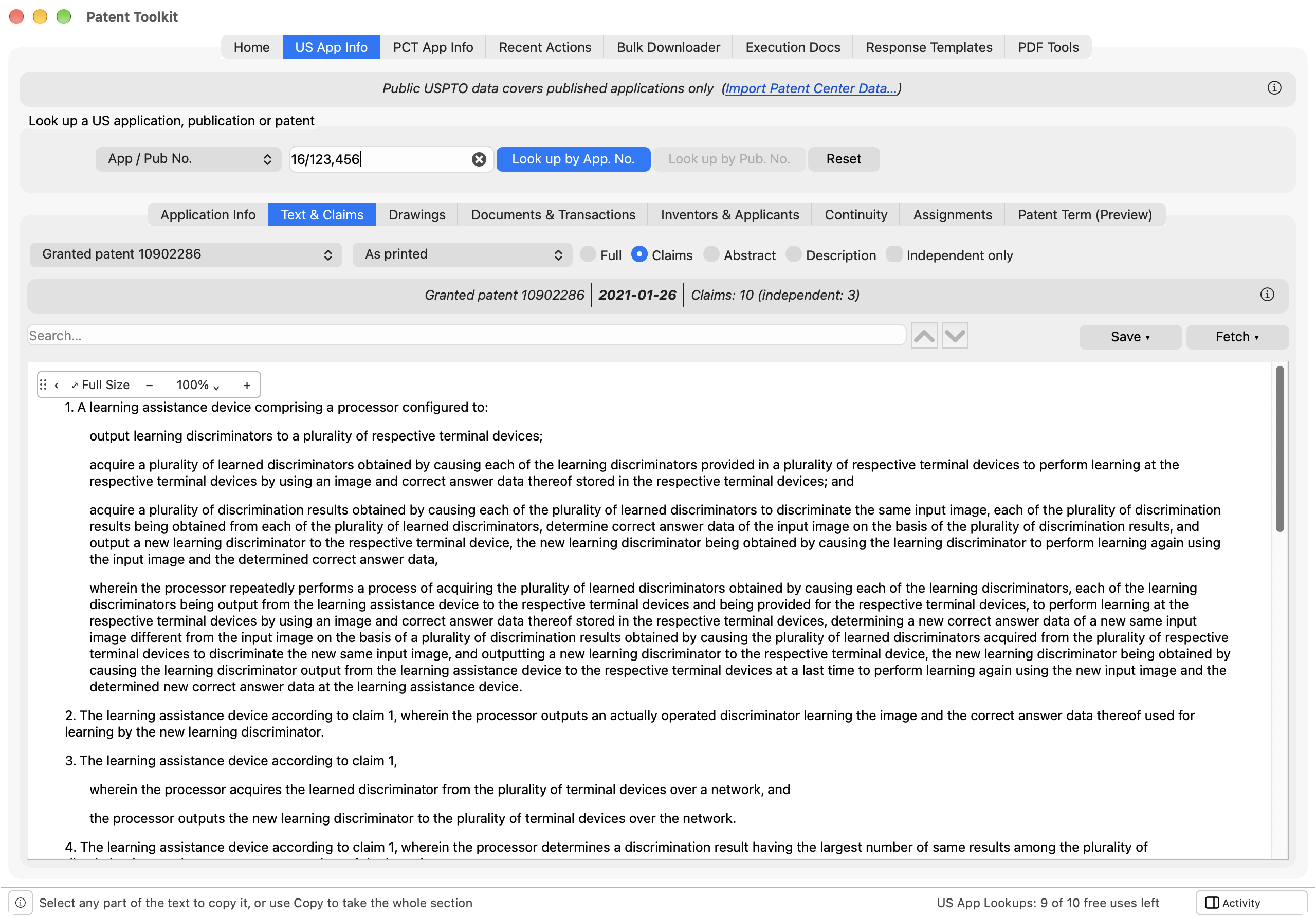
Choosing a document
Select the source document: a pre-grant publication, granted patent, application as filed, or dated claim set, where available. Check the document and date above the text before using it; a publication may not contain the latest claims of record.
Select Claims, Abstract, Description, or Full to choose a section. A separate reading selector offers the views supported by that document. Text loads when you choose it.
Preparing claims for amendment
For a claim set containing amendment markup, the readings are:
- Amendment markup preserves the filed underlining and strikethrough.
- Clean copy applies the markup and removes the claim status identifiers.
- Prepare for amendment applies the markup and updates status identifiers for the next amendment. For example, (Currently Amended) becomes (Previously Presented).
For unamended text, the plain reading is Claims as printed, Claims as filed, or As filed, depending on the source. Prepare claims for amendment or Prepare for amendment adds (Original) identifiers.
Select and copy the text you need. Before using it, verify that you chose the latest relevant claim set and check the text and identifiers against the filed record. Preparing claims from a publication does not establish that they remain pending or unamended.
Independent only filters the Claims section to independent claims. Leave it off when preparing a complete claim listing.
Comparing a grant with earlier records
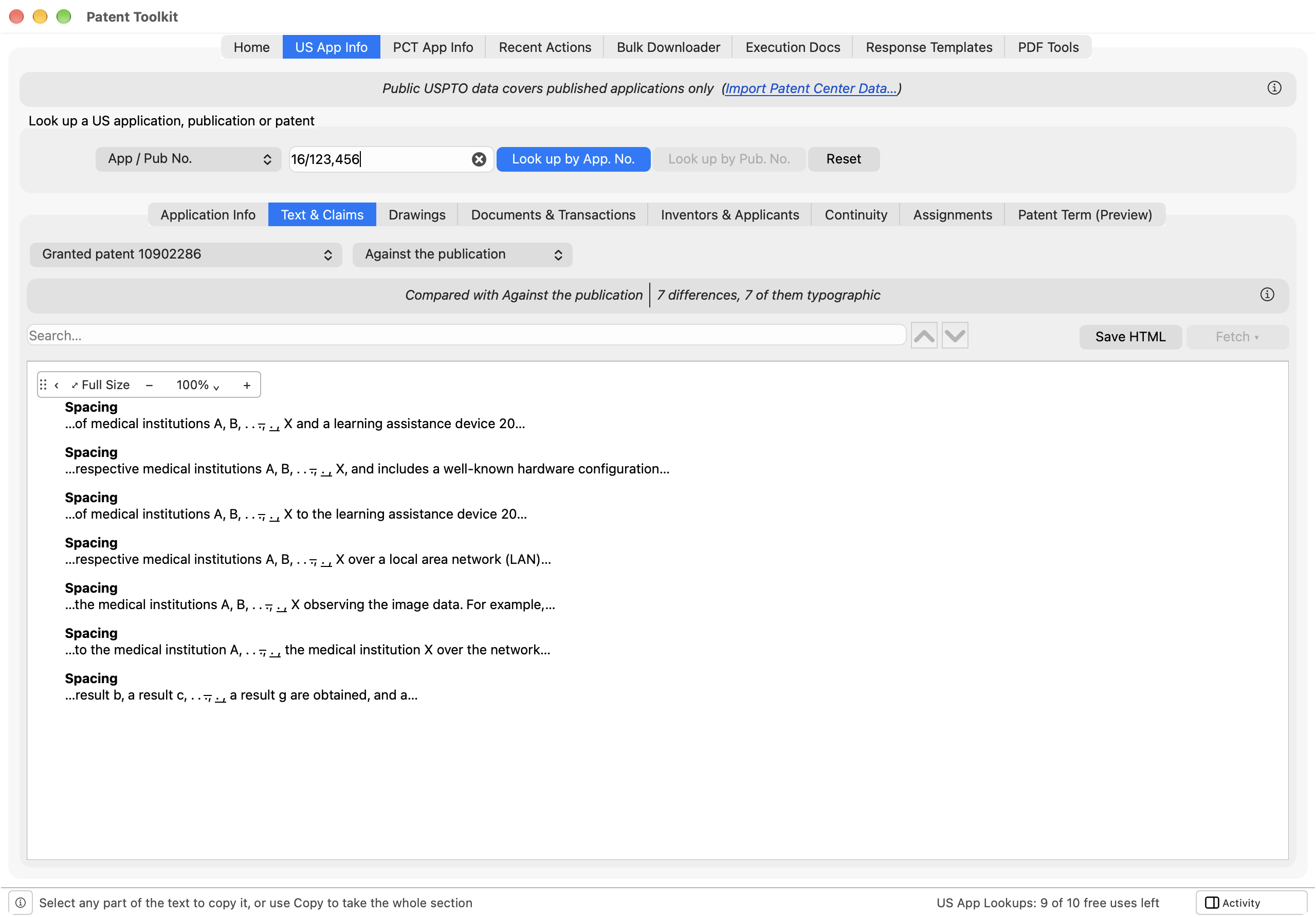
On a granted patent, choose:
- Against the publication to compare the grant with its pre-grant publication.
- Against the last claims filed to compare granted claims with the latest available filed claim set.
Each comparison loads the other document and lists differences with surrounding text. The summary distinguishes typographic differences from wording changes. Section controls are unavailable while a comparison is shown.
Review differences against the source documents and intervening prosecution record. A difference may reflect an authorized amendment; the comparison does not determine whether the issued text is erroneous.
Saving and exporting
The Save menu offers HTML, which saves the current reading, including its formatting and images, and Markdown, which writes the whole publication, with its front page, abstract, description and claims, as one Markdown file in the form best suited to handing a document to an AI assistant: each claim under its own heading with its dependency stated, formulas as LaTeX, and a placeholder where each image sits. It is also the most economical form for that purpose: an assistant reads it as written, with no conversion step, and its tokens go to the text rather than to markup, so a publication costs markedly fewer tokens than the same text as HTML and far fewer than as a Word document. Markdown is offered for published documents only; for a claim set, the button reads Save HTML. For an AI assistant, either file is a better source than the publication PDF, which the assistant must first convert or read through an OCR text layer; either step loses structure and may misread characters.
The Fetch menu offers the publication’s own files: PDF, PDF+OCR, and Word, a document generated from publication data. Each arrives in the Activity sidebar, where it can be opened or saved.
Formulas as text switches between available formula images and text renderings. Check equations against the source PDF if either rendering is unclear. Separate drawing sheets appear in Drawings.
Troubleshooting
- An option is missing. Options depend on the source and selected section. Comparisons require a grant and an available earlier record. Amendment preparation is not offered for granted claims.
- Text is missing. The source may be unavailable, outside text coverage, or unable to supply a readable filed document. Check the pane’s message and retrieve the PDF from Documents & Transactions or the publication row.
- A formula looks wrong. Try Formulas as text, where offered, and compare with the PDF.