
Start with the supplied examples to see how Patent Toolkit fills placeholders
and repeats inventor blocks. Save your working template as a .docx file, then
use it in Execution Docs. See Generating execution documents
for form entry, output choices, and saving.
Try the supplied individual template
-
Open Help → Execution Documents Template Reference and choose Save Example Templates…. Save the examples to a folder you can keep.
-
Open the individual example in Word or another DOCX editor. Work on a copy. Keep the layout you need and adapt the document text for your intended use.
-
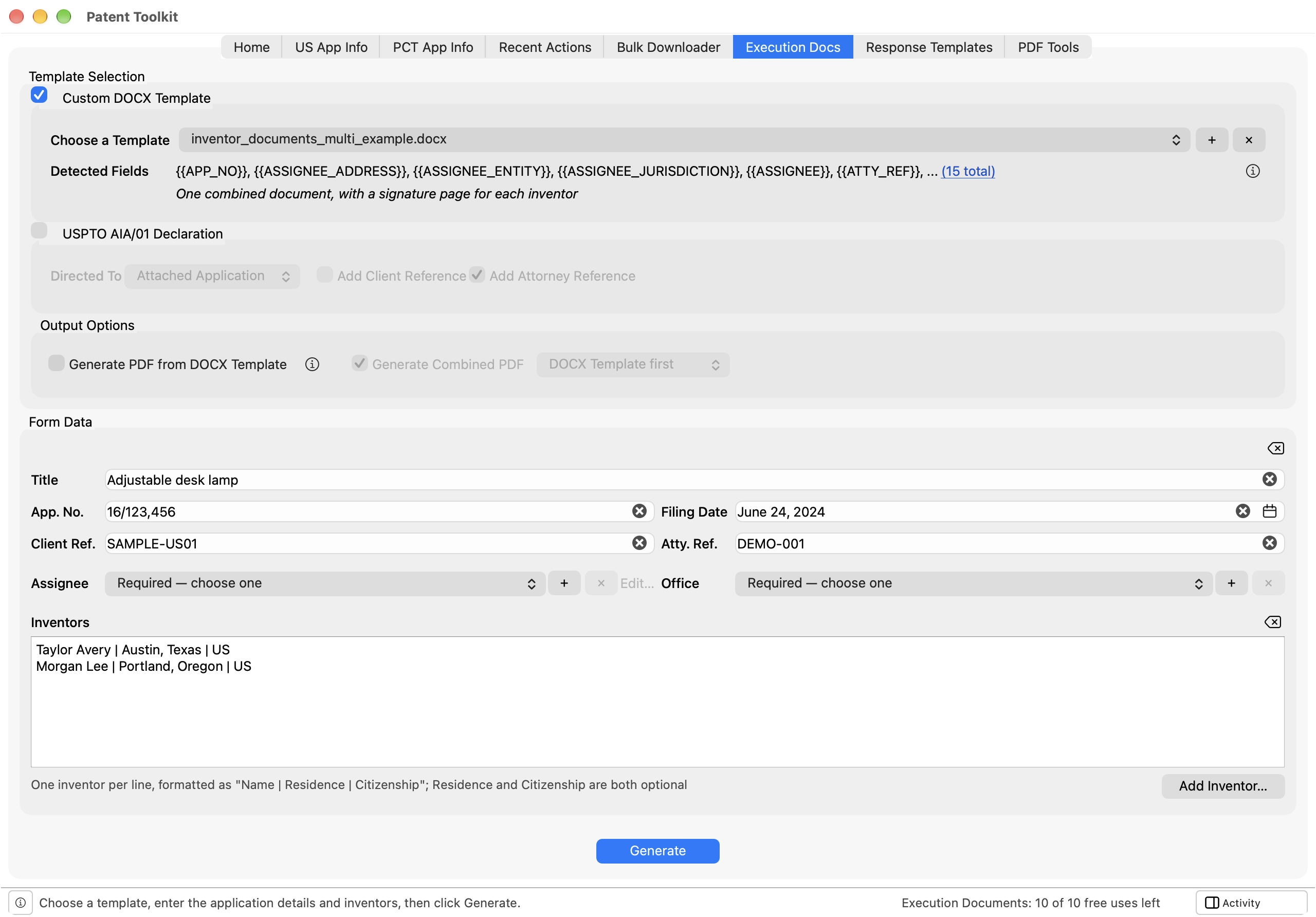
Add the copy using + beside the template selector in Execution Docs, then select it. Examples saved from the pane itself are added automatically; examples saved from Help must be added.
-
For a practice run, enter a title such as “Adjustable desk lamp,” an application number, and two inventors on separate lines:
Taylor Avery | Austin, Texas | US Morgan Lee | Portland, Oregon | US -
Fill any other fields your template uses, including the selected Office and Assignee records. Leave Custom DOCX Template selected, clear USPTO AIA/01 Declaration and Generate PDF from DOCX Template for this DOCX-only practice run, and click Generate.
-
Open both results. In an individual template,
{{INVENTOR}}should name Taylor in one file and Morgan in the other. Check headers, tables, page breaks, and signatures, then save the files you want to keep.
The examples demonstrate formatting and substitution. Review their wording before adapting them; a populated example is not a document ready for signature or filing.
Use supported placeholders
Type placeholders as ordinary document text, including both pairs of braces. Preserve their spelling and capitalization.
| Example | Value inserted |
|---|---|
{{TITLE}}, {{APP_NO}}, {{FILING_DATE}} |
Matter title, application number, and filing date. {{SER_NO}} is an application-number alias. |
{{ATTY_REF}}, {{CLIENT_REF}} |
Attorney and client references. |
{{INVENTOR}}, {{INVENTOR_RESIDENCE}}, {{INVENTOR_CITIZENSHIP}} |
The inventor for that individual document or repeating block. |
{{INVENTORS}} |
The full inventor list. |
{{ASSIGNEE}}, {{ASSIGNEE_ENTITY}}, {{ASSIGNEE_JURISDICTION}}, {{ASSIGNEE_ADDRESS}} |
Values from the selected Assignee record. Separate address fields are also available. |
{{PTO}} |
The selected Office. |
Use Help → Execution Documents Template Reference for the full field list and block rules. Help → Response Template Reference describes the separate fields for response templates, including office-action and claims fields. Do not assume a field from one reference works in the other.
Make one joint document
Open the supplied multi-inventor example. Shared matter text belongs outside
the repeating block; use {{INVENTORS}} there when you want the complete list.
Place the following markers in separate paragraphs, with the per-inventor
content between them:
{{INVENTOR_BLOCK_START}}
Inventor: {{INVENTOR}}
Residence: {{INVENTOR_RESIDENCE}}
Citizenship: {{INVENTOR_CITIZENSHIP}}
Signature: ____________________
{{INVENTOR_BLOCK_END}}
Keep both markers in the same document container, such as the main body. Do not put one in a table cell and the other outside that table. Keep all per-inventor placeholders inside the block.
Select the template in Execution Docs. The pane identifies joint-document mode. Generate with the same two practice inventors: the result should be one DOCX containing both inventor blocks, with a page break between copies. The markers themselves should be gone.
Formats, missing values, and PDF output
Preferences → Formats → Generated Documents controls how supported values are written into newly generated documents. Same as display follows the screen format. See File names and formats.
Resolve the missing-field warning before generation where possible. Continuing
does not supply the missing information: unfilled tags can remain visible, and
missing inventor details inside a repeating block become blanks. Check for both
leftover {{TAG}} placeholders and incomplete sentences. Correct unsupported or
misspelled tags using the field reference.
Generating DOCX files and AIA/01 declaration PDFs does not require Word. Converting your DOCX output to PDF requires Microsoft Word and, on macOS, the Patent Toolkit Helper. Review the converted PDF as well as the DOCX, especially after editing tables, headers, or page breaks.