
Use Preferences → File Names to control supported output filenames, and Preferences → Formats to choose how numbers, names, dates, and titles read. These are separate settings: a filename pattern chooses the pieces in a name; a format chooses how a value is written.
Choose the filename category
Each category has its own pattern and available tokens. Scroll down to see all five.
| Category | Files it names |
|---|---|
| Downloaded USPTO Documents | File-wrapper and office-action downloads, including downloads from Recent Actions and Response Templates. |
| Response Shells | Documents generated by Response Templates. |
| Execution Documents | Filled templates, declarations, and combined PDFs. |
| Publications and Grants | Publication and grant PDFs fetched from US App Info. Bulk Downloader uses its own filenames. |
| Processed PDFs | PDFs saved beside their originals by Process PDFs. Files saved to another folder retain their existing names; Name for filing has its own rules. |
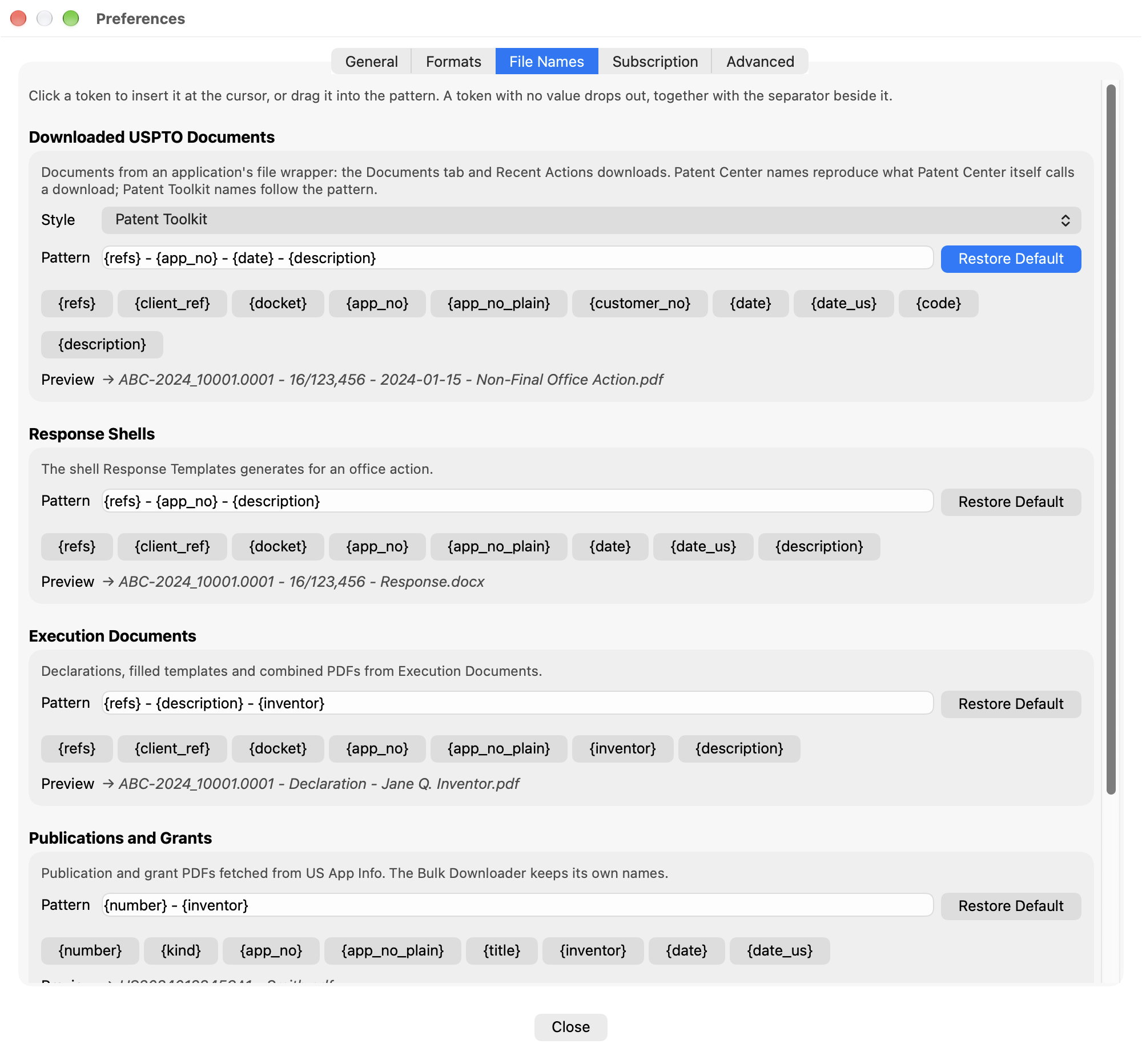
Build a pattern and check the example
- Find the category you want to change. For Downloaded USPTO Documents, choose Patent Toolkit under Style to edit its pattern.
- Click in Pattern, then click a token to insert it at the cursor. You can also drag a token into the pattern or type it with its braces.
- Add separators and ordinary text. For example,
{app_no_plain} - {date} - {code}gives downloaded documents a name based on the application number, mail date, and USPTO document code. - Review the example below the field. Hover over a token to see its meaning and a sample value. Valid changes are saved as you edit.
- Download or generate a sample file and check its actual name. The preview uses sample data; your file may have fewer values.
A token with no value drops out with its adjacent separator. Tokens differ by
category: {date} is the document’s mail date for file-wrapper downloads, the
action’s mail date for a response shell, the publication date for a publication,
and today’s date for a processed PDF. Use only the tokens offered in that group.
Keep a token that distinguishes files, such as {app_no_plain}, {number}, or
{name}. An invalid pattern shows a warning and is not saved. Restore Default
resets that category’s pattern. Changing a preference does not rename files
already saved.
Use Patent Center filenames
Choose Patent Center under Downloaded USPTO Documents → Style to use Patent Center’s naming style for those downloads. The custom pattern is not used while this style is selected. This choice does not change response-shell, execution-document, publication, or processed-PDF names.
Separate display and document formats
Open Formats. Display Formats controls how application numbers, publication numbers, patent numbers, inventor names, dates, and titles appear throughout the app. The underlying values do not change.
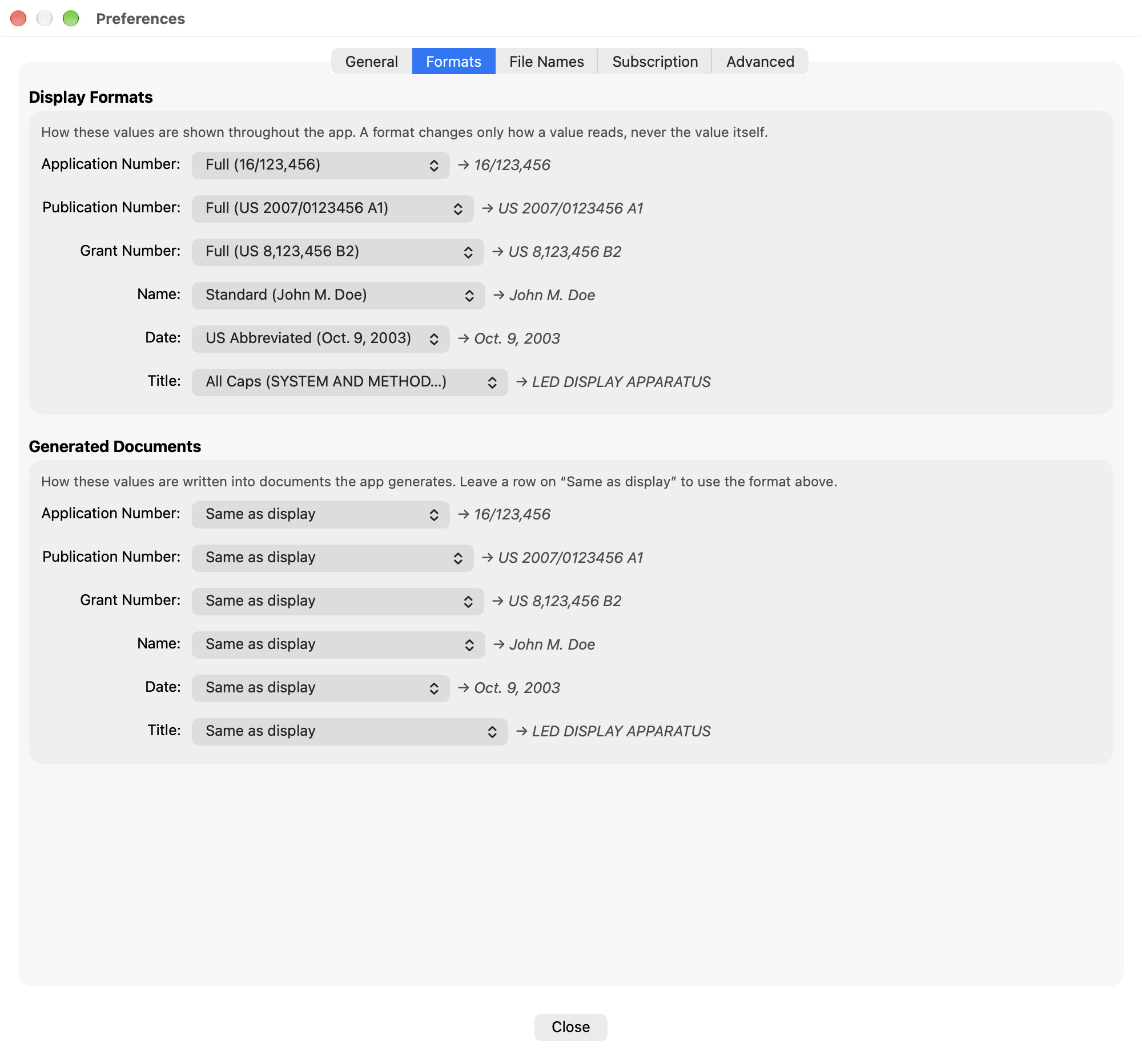
Under Generated Documents, leave a row on Same as display to follow the corresponding display choice, or choose a separate format. For example, you can keep compact dates on screen and use written-out dates in generated documents. Review the examples, then generate a sample to check your template’s punctuation and spacing. Existing documents are not reformatted when a preference changes.
Troubleshooting
- A pattern was not saved. Read the warning below it. Check the braces, use a token offered for that category, and include a token that distinguishes files.
- A filename ignores the pattern. Check its category and the selected style. Bulk Downloader, files saved to a different output folder, and Name for filing follow the separate rules described above.
- A document looks different from the screen. Check Generated Documents for an explicit format overriding Same as display.