
Use Documents & Transactions in US App Info to review available documents and recorded prosecution events.
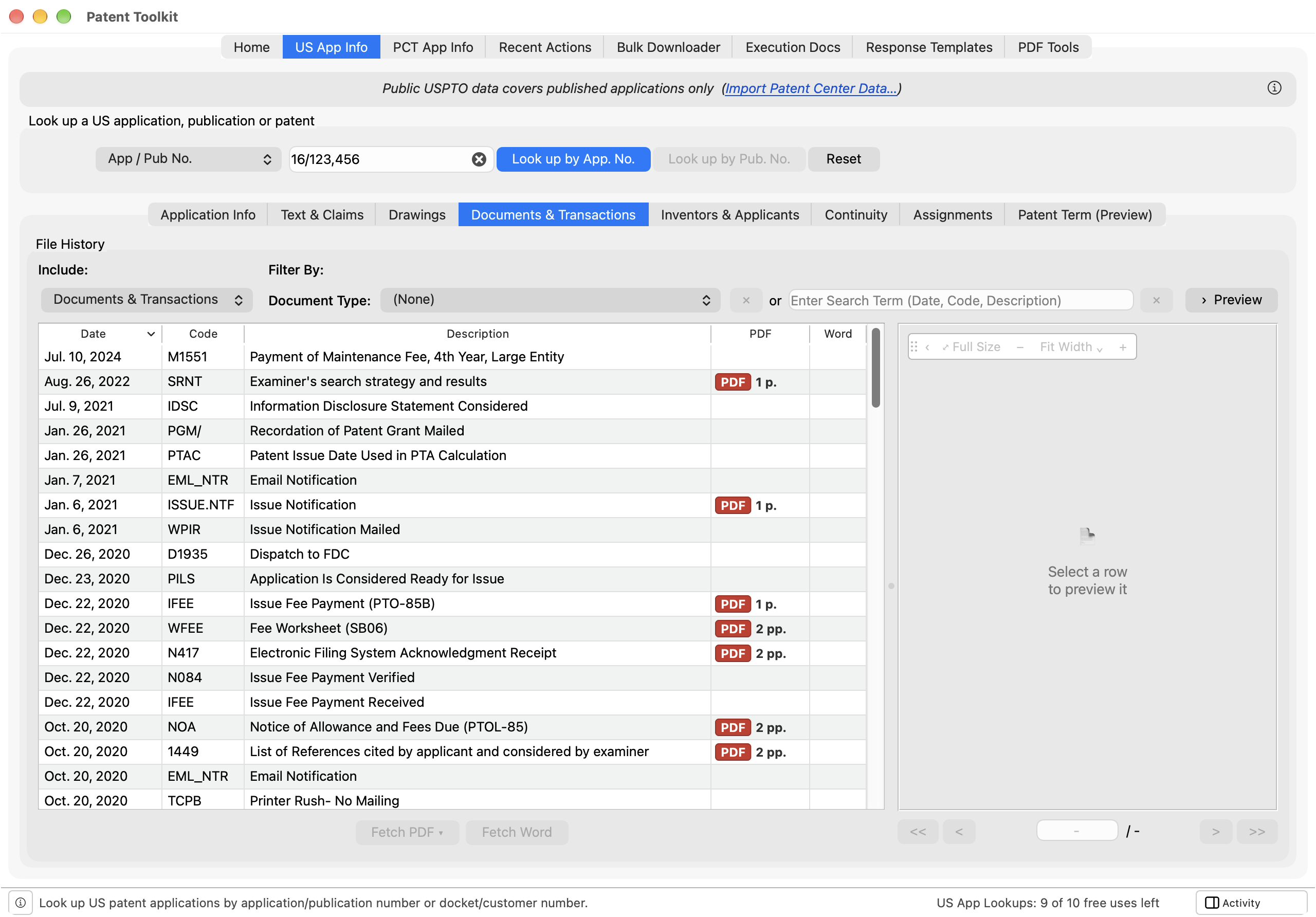
Documents and transactions
File History lists documents and transactions together. Use Include to show either type or both, and click a column heading to change the order.
A solid PDF badge with a page count identifies a downloadable document. A transaction without a document badge records an event, such as a payment or dispatch; it is not a missing PDF. The Code column shows the source’s document or transaction code.
For an imported Patent Center record, dashed badges identify correspondence whose PDFs must be retrieved in Patent Center. Imported transactions combine correspondence events with the latest transaction recorded in each applications export. The notice above the table explains this limited coverage.
Filtering the history
Use Document Type to narrow the list by document category. The search field matches dates, codes, and descriptions. Clear both filters when checking whether a document is present.
Previewing and downloading
Select a document to load its preview. The preview waits until you pause on a row before fetching it. See Reading a document in the preview.
- Fetch PDF retrieves the selected documents. Use its dropdown to include OCR for scanned pages.
- Fetch Word retrieves the Word version supplied by USPTO, where available. It does not convert a PDF to Word. For a multi-document selection, every downloadable document must offer a Word version.
Downloads appear in Activity, where you can open or save them. After a PDF is fetched, its row also offers Open PDF and Save PDF in the right-click menu; double-clicking opens it.
Use Preferences → File Names to choose a naming pattern or Patent Center filenames for file-wrapper downloads.
Troubleshooting
- The list is empty or incomplete. Clear the filters and check the source notice. Public coverage may be unavailable; imported history covers only the exports read. Compare with Patent Center.
- Fetch Word is unavailable. USPTO does not supply a Word version for every document. Select a row that offers one, or fetch the PDF.
- A document will not preview. Check for a password prompt or a download error. If the file can be fetched, save it and open it in its usual application.
- A scan cannot be searched or copied. Fetch it with OCR, or use Add Text Layer in its full-size PDF preview.