
Use Process PDFs to apply several operations to one PDF or a batch.
Running a batch
- Add files with Add PDF(s), Add Folder…, or drag and drop.
- Choose a Preset or select the operations you need.
- Review Output Options, then click Process.
- Inspect the output and any reports in Activity.
By default, output files are written beside the originals. You can choose another destination or replace originals; check this setting before running.
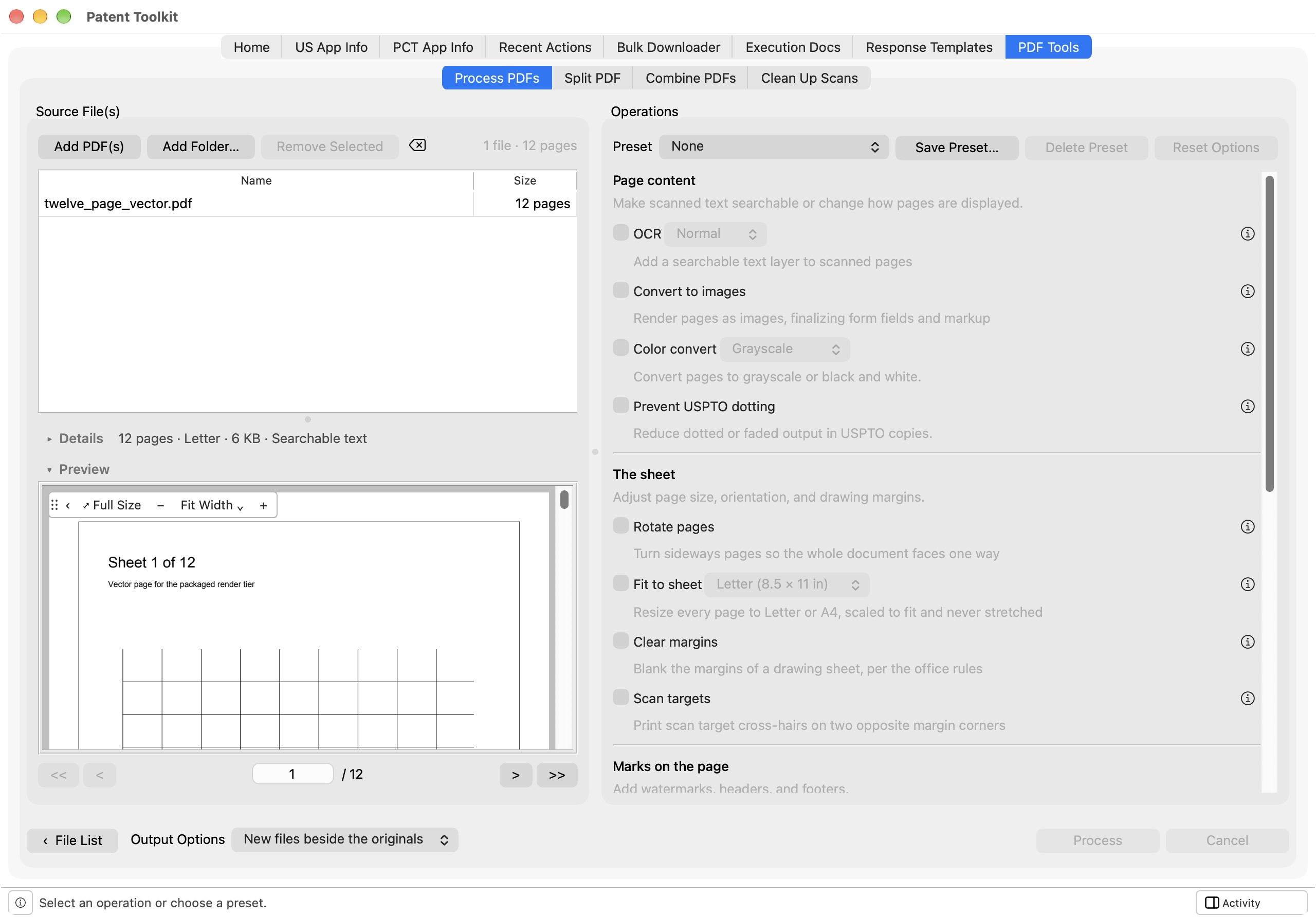
Select a file to preview the source. Details summarizes its page count, sizes, text layer, and other properties; click it for more information. The source list and preview can be resized or collapsed.
Choosing operations
The groups describe the stages of processing. Use the ⓘ beside an operation for its settings and limitations.
- Page content: OCR adds searchable text; flattening fixes forms and annotations into the page while preserving native text. Convert to images and Color convert render pages as images. Prevent USPTO dotting reduces the risk of dotted or faded black in USPTO’s copy.
- The sheet: rotate pages, use Fit to sheet to place them on Letter or A4 without stretching, clear drawing margins, or add scan targets.
- Marks on the page: add headers, footers, page numbers, Bates numbers, and watermarks.
- File operations include sanitizing metadata and other selected content, adding or removing password protection, extracting text, splitting to a target size, checking common filing issues, and Name for filing.
For Name for filing, choose the document kind under File as. The app applies the corresponding filename rules and document tag. Other processed PDF filename patterns are set in Preferences → File Names.
Important combinations
- Clearing margins hides content; it does not by itself delete it. Also select Convert to images or Color convert in the same run to remove covered content from the rendered output. Flattening or OCR alone does not guarantee removal. Review the result before relying on it to remove sensitive information.
- Rendering replaces native text with an image. Add OCR in the same run if the output must be searchable.
- Prevent USPTO dotting preserves native text but may remove an existing text layer from scanned pages. Select OCR to restore it and review any reported text loss.
- Extract Text uses the appropriate source for the selected operations. If margin content must be removed, render the cleared pages and OCR them before relying on the extracted text.
- Password protection encrypts the output and causes the pre-filing check to flag it.
Headers and Bates numbering
Enter header or footer text in the left, center, or right field. Use + to insert page numbers, dates, or Bates numbers. Include a Bates-number token to enable Bates numbering, then set its starting number and format.
Bates numbering continues across files in the batch. Review the file order before processing. If Split to size is also selected, the total-page token uses the document’s page count before splitting.
For worked drawing and numbering tasks, see Preparing drawing sheets and numbered PDF batches.
Presets and drawing sheets
Save Preset… stores the current combination. Select it later from Preset, or use Reset Options to clear the operations.
For drawing sheets:
- Drawings, as drafted preserves margin content.
- Drawings — clear margins removes margin content through the preset’s rendering operations.
- The onto Letter variants fit A4 drawings proportionally within Letter drawing margins and replace the old scan targets.
These presets rotate sideways sheets, add scan targets, and enable Prevent USPTO dotting. Margin and scan-target operations require upright Letter or A4 pages; other sizes are left unchanged unless fitted first.
Reviewing filing checks and forms
Pre-filing check reports common issues such as encryption, unembedded fonts, filenames, attachments, page sizes, and scan quality. On its own, it writes only a TXT report, named after the document and placed where the output would go; the PDF is left unchanged. Combined with other operations, the report describes the output and appears beside it. The report is listed in Activity, and the status line states how many blockers and warnings were found. Review the report and the resulting PDF; the check does not guarantee acceptance by a patent office.
Supported dynamic USPTO forms, such as the ADS, are rendered to their actual pages before processing, rather than processing a single “Please wait…” placeholder. Check the rendered content and page count before filing.
Troubleshooting
- Process is unavailable. Add a file and select an operation. Check the status message for any invalid settings.
- The output is no longer searchable. Add OCR when rendering pages or processing scans with Prevent USPTO dotting.
- Margin text can still be copied. Clearing alone is an overlay. Render the cleared pages as described above, then inspect the output.
- A drawing operation was skipped. Rotate the page upright and, if necessary, use Fit to sheet before applying margins or scan targets.
- A file was not written. Check the result message for an unreadable file, password requirement, or output-folder access problem.