
Preview documents beside the file wrapper, PDF Tools, or Activity. Supported previews include PDFs, Word files, Excel workbooks, HTML, and plain text.
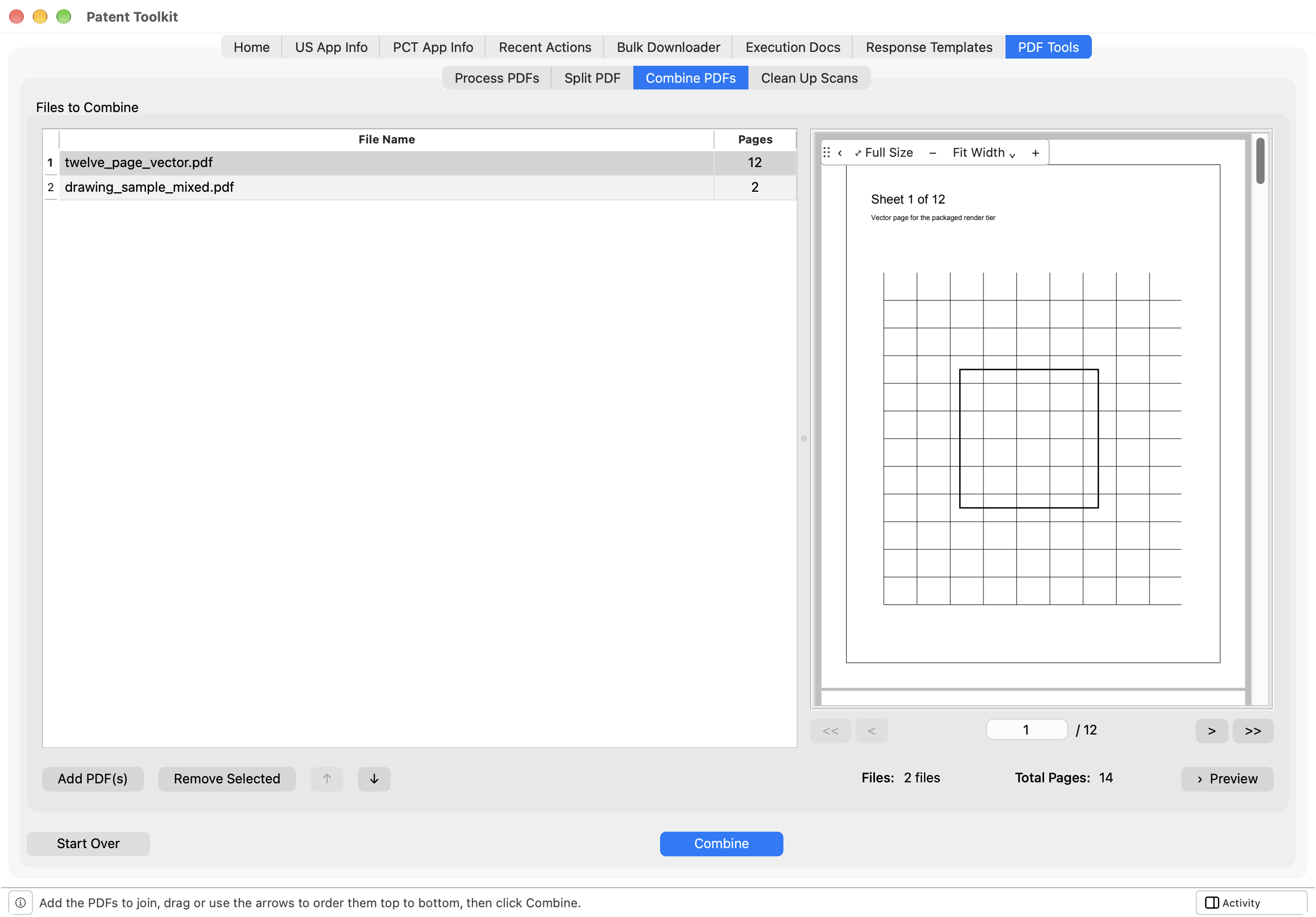
Loading and navigating
Select a document row to load its preview. When moving through a list, pause on the row to let it load. A transaction or other row without a document has nothing to preview.
For PDFs, use the page arrows or type a page number. Fit Width adjusts the page to the available width; + and − change the zoom.
Opening a full-size preview
Choose Full Size to open a separate window with search and additional document controls. If a large inline text or spreadsheet preview is shortened, the full-size window loads the complete content.
Selecting another row changes the inline preview but leaves an open window on its original document. Open several documents to read them side by side. Opening the same document again brings its existing window forward.
Searching and copying PDF text
In a full-size PDF window, choose Text from View to select and copy the extracted text. Page shows the rendered pages. Search works in either view when a usable text layer is available.
For a scan, Add Text Layer runs OCR on a copy and leaves the original unchanged. After OCR, review the text and use Save Searchable to keep the searchable PDF before closing the window. OCR can misread characters and does not preserve every aspect of the page’s layout.
For publication text and claim-specific readings, use Text & Claims.
Password-protected PDFs
Select the locked PDF and choose Unlock, then enter its password. Once unlocked, it can be previewed and used by tools such as Combine during the session. Unlocking the preview does not remove the password from the original file; use Process PDFs to save an unprotected copy.
Troubleshooting
- No document is loaded. Select a row with an available file and expand the preview if it is collapsed.
- A preview cannot be displayed. Check for a password prompt or source error. If the file is available, save it and open it in its usual application.
- Search finds no text. A scan may need Add Text Layer. If text is present but incorrect, compare it with the page image.
- A Word preview differs from the document. Open the saved file in Word to check its final formatting.