
Use Recent Actions to find recognized USPTO actions for a customer number and date range. Results combine available public records with any Patent Center exports you have imported.
Running a search
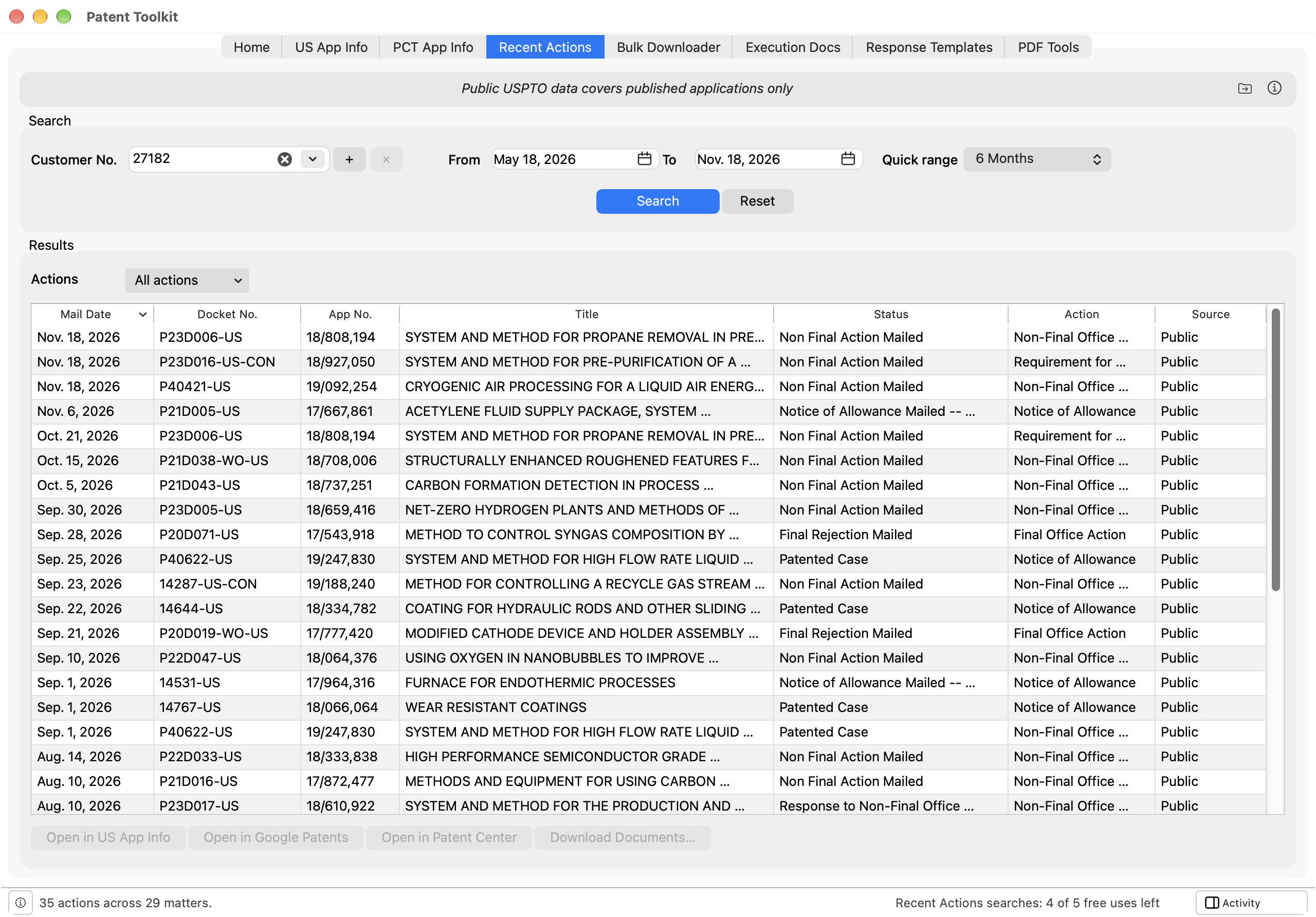
- Choose or enter a USPTO customer number.
- Set Quick range, or enter From and To dates.
- Check the coverage notice, then click Search.
The app limits selectable dates when its source reports a coverage cutoff. A recent mailing may not yet be included.
Results contain one row per recognized action, with mail date, docket and application numbers, title, status, action type, and Source. Click a column heading to sort. Use Actions to filter the results without rerunning the search. Select rows and press Cmd+C on macOS or Ctrl+C on Windows to copy them.
Recognized actions include office actions, restrictions, elections, advisory and Ex Parte Quayle actions, allowances, formalities notices, and reply defects. The results are not a list of every document mailed by USPTO.
Opening matters and saving results
Select a row and choose Open in US App Info, Open in Google Patents, or Open in Patent Center. Use Response Templates to prepare a response from the application and selected action.
Each completed search produces an Excel workbook in Activity. The workbook covers the full results, including rows hidden by the Actions filter.
Downloading action documents
Download Documents… is a Pro feature. Select one or more public result rows, then choose:
- the action document alone; or
- the action and selected accompanying papers, packaged as one ZIP per application.
The companion checklist includes cited-reference lists, initialed IDS sheets, interview summaries, initialed after-final amendments, and office action appendices. Search notes, claim indexes, and copies of cited references are excluded.
Select Apply OCR so the documents can be searched to add a text layer to each PDF. The choice is remembered for the next run. A document that cannot be read is delivered as received, and the Activity entry reports how many were delivered without OCR.
The dialog shows the filename style selected in Preferences → File Names and provides a link to change it. A run can fetch up to 100 documents. Imported unpublished rows are skipped because their PDFs are available only in Patent Center. Review the completion status and save results from Activity.
Including unpublished matters
Open File → Import Patent Center Data…, or the import or management link above the results, to add your Patent Center XML exports.
- Applications exports provide status snapshots from which the app can infer some action types. They do not supply a complete mailing history.
- Correspondence exports identify recognized mailings within the exported image-date windows. Import overlapping windows regularly and fill any reported coverage gaps.
The Source column distinguishes public and imported results. See Using Patent Center exports for individual imports and shared-folder setup.
Use Recent Actions alongside your docketing system. Verify mailings and deadlines against the official record.
Troubleshooting
- Expected results are missing. Check the customer number, dates, action filter, and coverage notice. Then check the export filters and date windows for an unpublished matter.
- Search is unavailable. Check that a customer number and valid date range are entered. Dates beyond the displayed coverage may need a later source update or a fresh Patent Center import.
- A document was skipped. Check whether its row is imported or whether the source offers a downloadable public document.
- A date differs from your receipt date. Check the row’s source. Public and correspondence results use source mailing information; an inferred action from an applications export may rely on its status or transaction date.