
Use Response Templates to fill your DOCX template with application details and information about a selected USPTO action. Where available, you can also carry forward a filed claim listing.
Before you start
Prepare a DOCX template with supported placeholders. Help → Response Template Reference lists the fields and provides an example to save and adapt.
Choosing an action
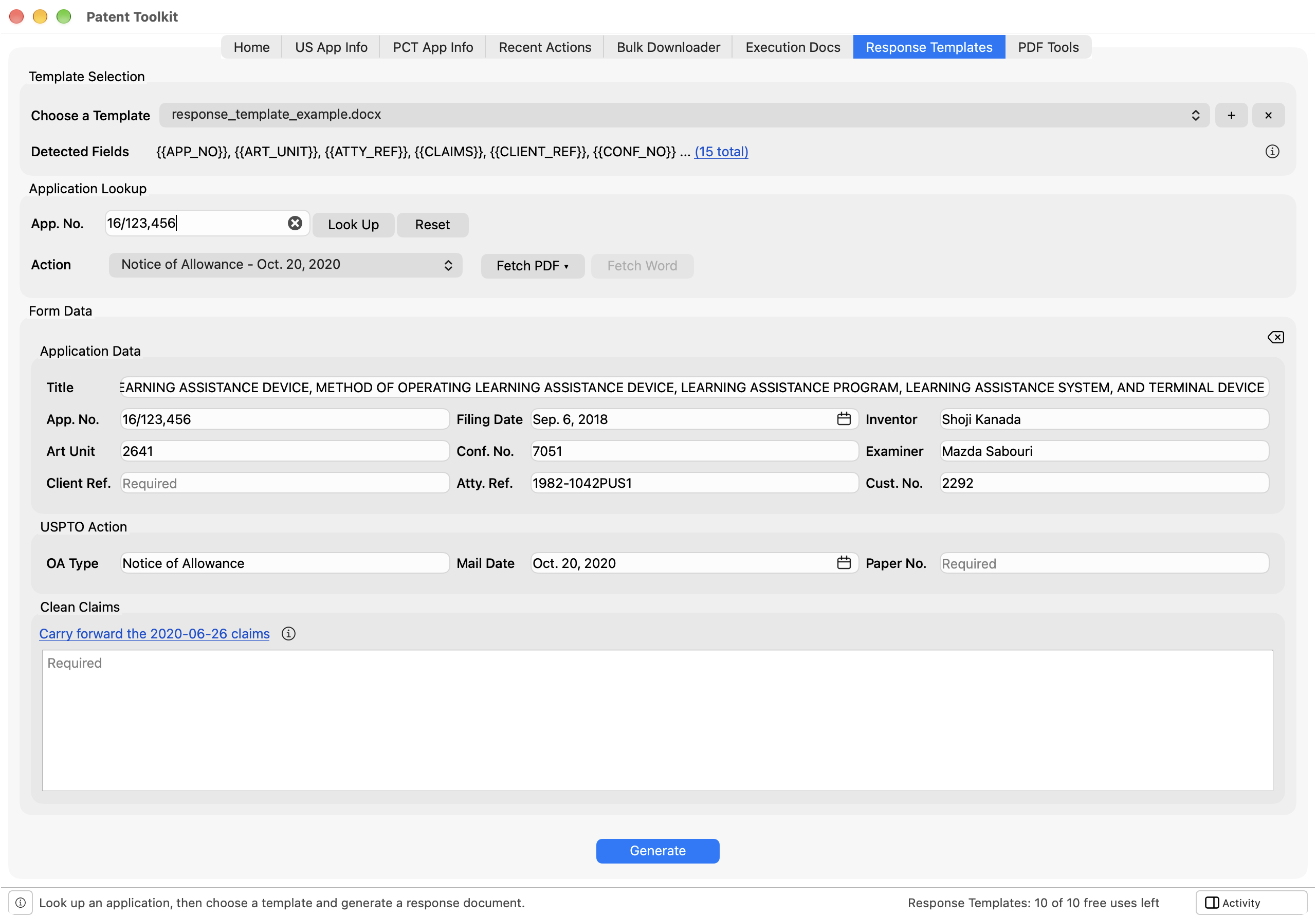
- Choose the template, enter the application number, and run the lookup.
- Check the selected action and mail date. The app selects the most recent recognized action; use Action to choose an earlier one.
- Review and edit the populated fields before generating.
Recognized actions include non-final and final office actions, restriction and election requirements, advisory and Ex Parte Quayle actions, allowances, information requirements, formalities notices, and reply defects. Availability depends on the public record.
Claims and generation
Clean Claims accepts the claim listing to insert into your template. When a filed claim set is available, the pane offers to fill this field from that set, with status identifiers prepared for the next amendment.
Check the source date, claim text, and identifiers against the prosecution record. Carrying claims forward does not establish that the selected set includes every later change.
Click Generate, then open or save the completed DOCX from Activity. Missing values can leave unfilled placeholders; check for leftover tags and blank fields before using the document.
Downloading the action
Fetch PDF retrieves the selected action; its dropdown offers OCR. Fetch Word retrieves the source Word version where USPTO supplies one. These downloads appear in Activity and can run independently of generation.
For the template setup workflow and generated-document formats, see Building DOCX templates. Use the Response Template Reference for this pane’s fields. For lookup failures, see connection checks and support diagnostics.
Building a working file
Build Working File (Preview)…, in the Actions menu, builds a matter folder for answering it: the action and the one before it, each with its text, rejections and cited references as plain files; the references the examiner applied; the claims as they stood; and the application as filed. The folder is built around the action chosen under Action, so choosing an earlier paper builds the working file for that one. The run is separate from generation and appears in Activity. Building a working file describes the window, the layouts and what a run costs.
Troubleshooting
- The wrong action is selected. Choose the intended paper from Action and check its mail date.
- A field is empty. Review the source record and enter the missing value manually. Not every source provides every field.
- No action is found. Check the number and source message, then verify the public record. Patent Center imports do not provide unpublished action PDFs for this workflow.
- Claims cannot be filled automatically. Enter the verified listing in Clean Claims and confirm that your template includes the claims field.