Use Activity to track downloads, OCR, document generation, and PDF work, then preview, open, or save the results.
Opening the sidebar
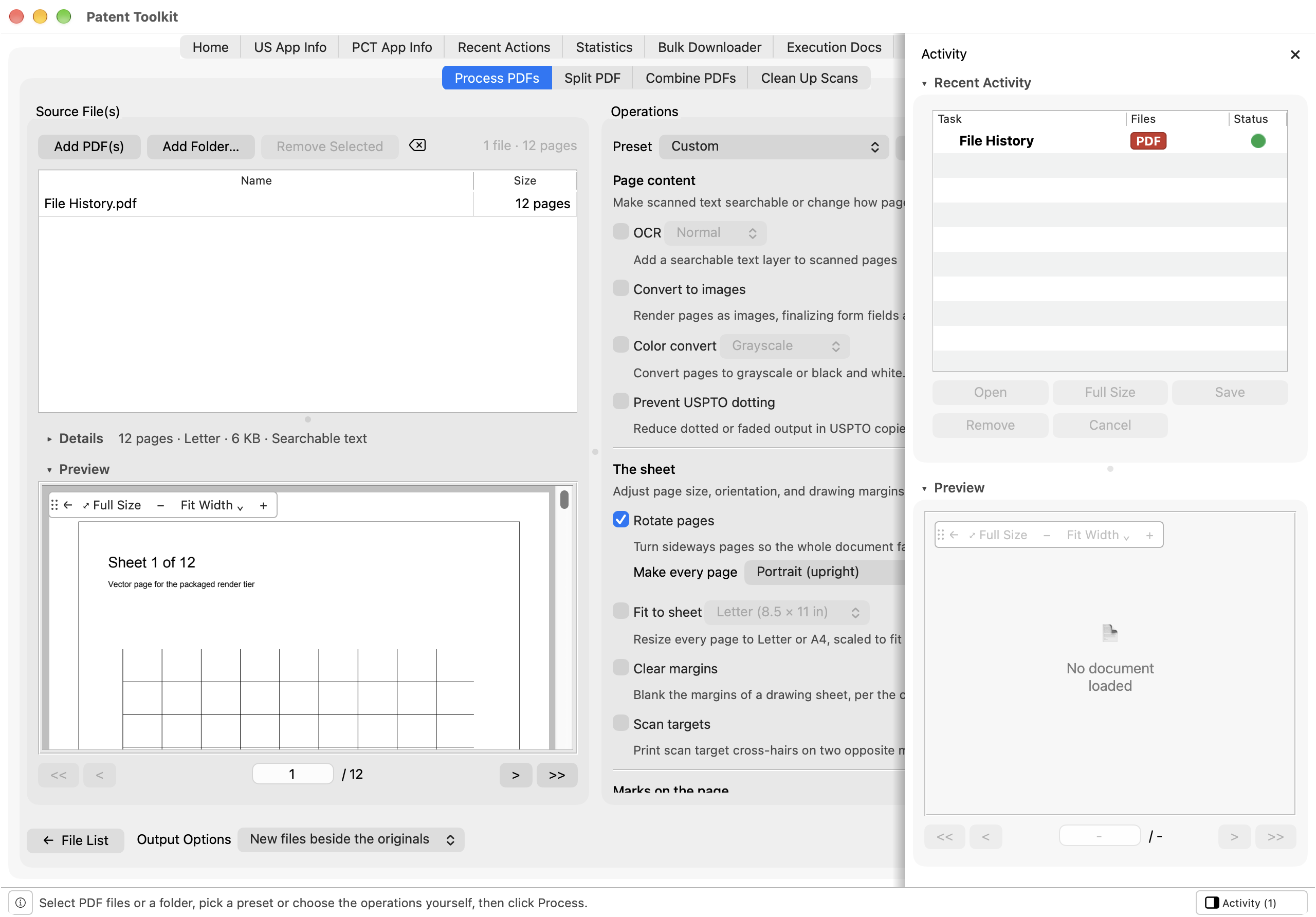
Choose Window → Activity or click Activity at the right end of the status bar. Its count indicates unseen completed jobs, and a spinner indicates work in progress.
The sidebar normally opens when a document fetch or generation starts. Lookups, Bulk Downloader runs, and Recent Actions searches report progress in their own tabs without opening it. You can turn automatic opening off in Preferences → General.
When the window is wide enough, Activity sits beside the current tab. In a narrow window, it overlays the content. Drag its divider to set the width or close it when you need the full tab.
Opening and saving results
Recent Activity shows each Task, its Files, the Tool that started it, and its Status. Expand a multi-file result to select an individual output.
Select a result to Open, view at Full Size, Save, or Remove it. A running job offers Cancel where supported. The Preview section follows the selected file.
Downloads and generated documents are generally held in the app’s working area until you save them. Tools that ask for an output file or folder, such as Split and Combine, write to that destination during the run.
A previously fetched document can reopen its existing Activity row. File wrapper rows also offer Open PDF and Save PDF after a fetch, and a finished-task notice beside the Activity button links to the result.
After a restart
Activity history and completed outputs can remain available after a restart. Working files are cleared periodically, so save anything you want to keep.
A restored result can open or save retained files but cannot rerun the task. Start a new run from the feature’s tab. A history row may remain after its working files expire.
Arranging the sidebar
Drag the divider between Recent Activity and Preview to resize them. Collapse either section when it is not needed. The app remembers the arrangement.
See Reading a document in the preview for full-size reading, search, copying text, and OCR.
Troubleshooting
- A completed result has no files. Its working files may have expired or been cleared. Check any folder where you saved them, or run the task again.
- The sidebar did not open automatically. Open it with Window → Activity and check the automatic-opening preference. Lookups and searches do not automatically open it.
- The preview is empty. Expand Preview and select an individual file. A lookup or summary row may not itself have a previewable document.