
Sign in with the email address linked to your subscription to use Pro on another computer. Signing in also provides the monthly Free allowance if the address has no paid plan.
Sign in with an email code
- Open Preferences → Subscription, then find Sign In and Other Devices.
- Enter your email address and click Send Code. For a website purchase, use the purchase address. For Firm access, use the work address assigned to your seat.
- Enter the emailed six-digit code and click Sign In. Review and accept the Terms if prompted.
- Check Current Plan. If a purchase or seat was just added, click Refresh Plan.
The screenshot shows the website-billed version. Apple purchase and restore controls appear in the Mac App Store version.
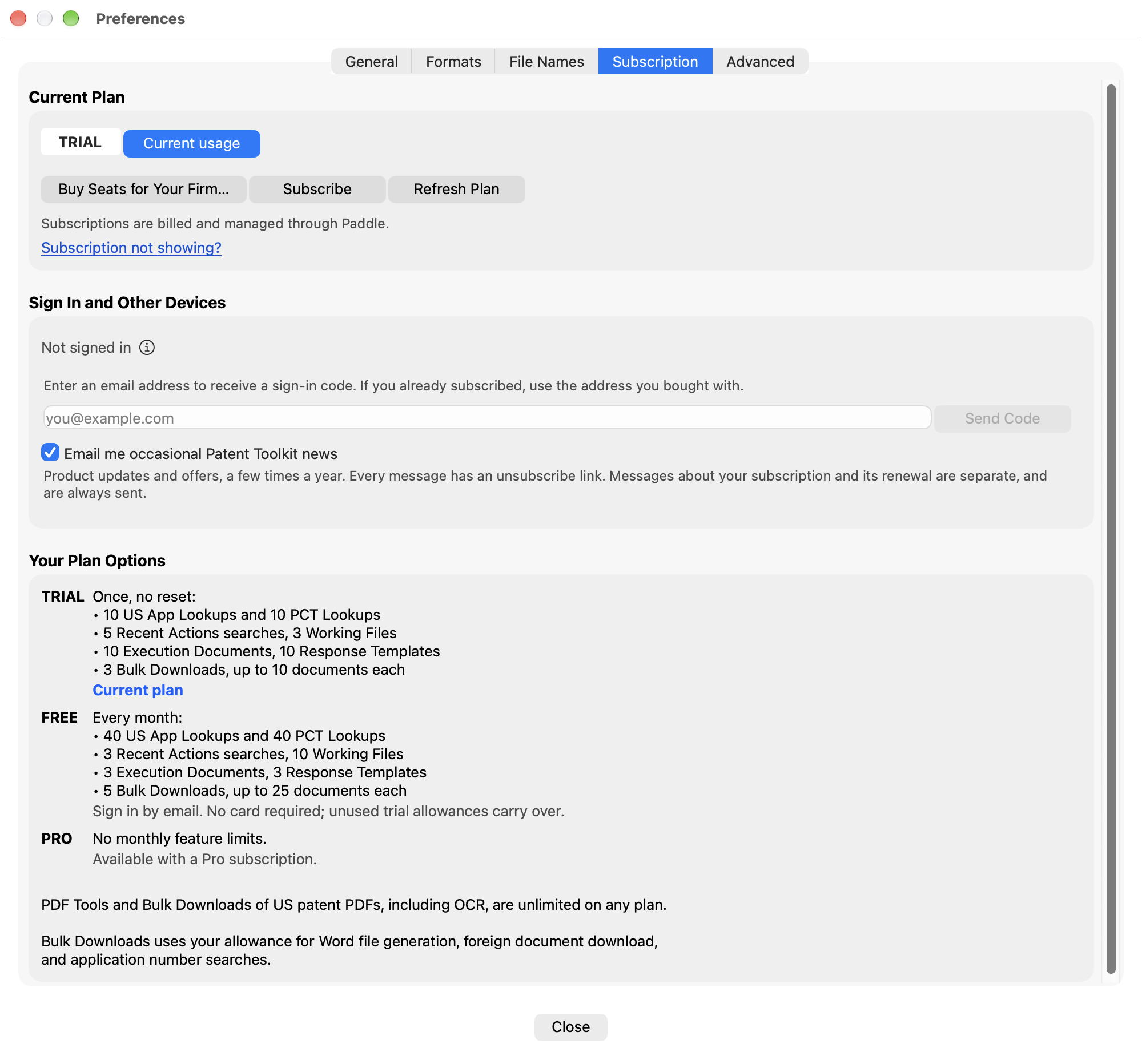
Use Send a new code when the current code has expired, or Use a different email to correct the address. No password is needed.
Bring an Apple purchase to another computer
On a Mac using the Apple Account that bought the subscription, open Patent Toolkit and choose Restore Purchases in Preferences → Subscription. Follow any Apple authentication prompts.
Pro can work on that Mac without an email sign-in. To use the subscription on Windows or on a Mac using a different Apple Account, link an email address under Sign In and Other Devices, verifying it with an emailed code. Then sign in with that address on the other computer.
The linked email can differ from the Apple Account address. If the purchase is already linked, restoration asks for that linked address. If the app reports a different email address, sign out, choose Restore Purchases, and enter the address previously linked to the purchase.
Restoration does not renew an expired subscription. Use the Account page for Apple billing and subscription management.
Manage linked devices
A paid account can have up to three linked devices. Open Devices… to review the list, including when each device was added and last used. Select an unused device and choose Remove to sign it out and free a slot.
If sign-in reaches the device limit, the app can offer Release and Use Pro Here. This releases the least recently used device; use it only when that is the device you intend to replace. Otherwise, manage the list from a computer already signed in, remove the appropriate device, and try again.
Removing a device, signing out, or using Unlink This Device does not cancel billing. A removed device can be activated again later, subject to the limit.
Use a Firm seat or manage billing
Sign in with your assigned work address. If Firm access does not appear, ask your administrator to check the address, seat assignment, and available capacity. A personal purchase under another address does not transfer to your work account merely by signing in.
Administrators can use Manage Firm Seats where offered, or sign in at the Firm page. See Manage your subscription for provider-specific billing, cancellation, invoices, and seat-management instructions.
Troubleshooting
- No code arrived. Check the address and junk folder. Wait for the resend control before requesting another code. If requests are rate-limited, follow the waiting period in the message.
- Sign-in succeeded, but Pro is missing. Check the purchase or linked email, click Refresh Plan, and use Subscription not showing? for further help. For a Firm seat, contact the administrator.
- Restore Purchases found nothing. Check the Apple Account signed into the App Store and whether the subscription is still active.
- The server cannot be reached. Follow the connection checks and support steps. A connection failure does not necessarily mean the code is invalid.