
Use Split PDF to extract named sections and Combine PDFs to assemble several documents.
Splitting
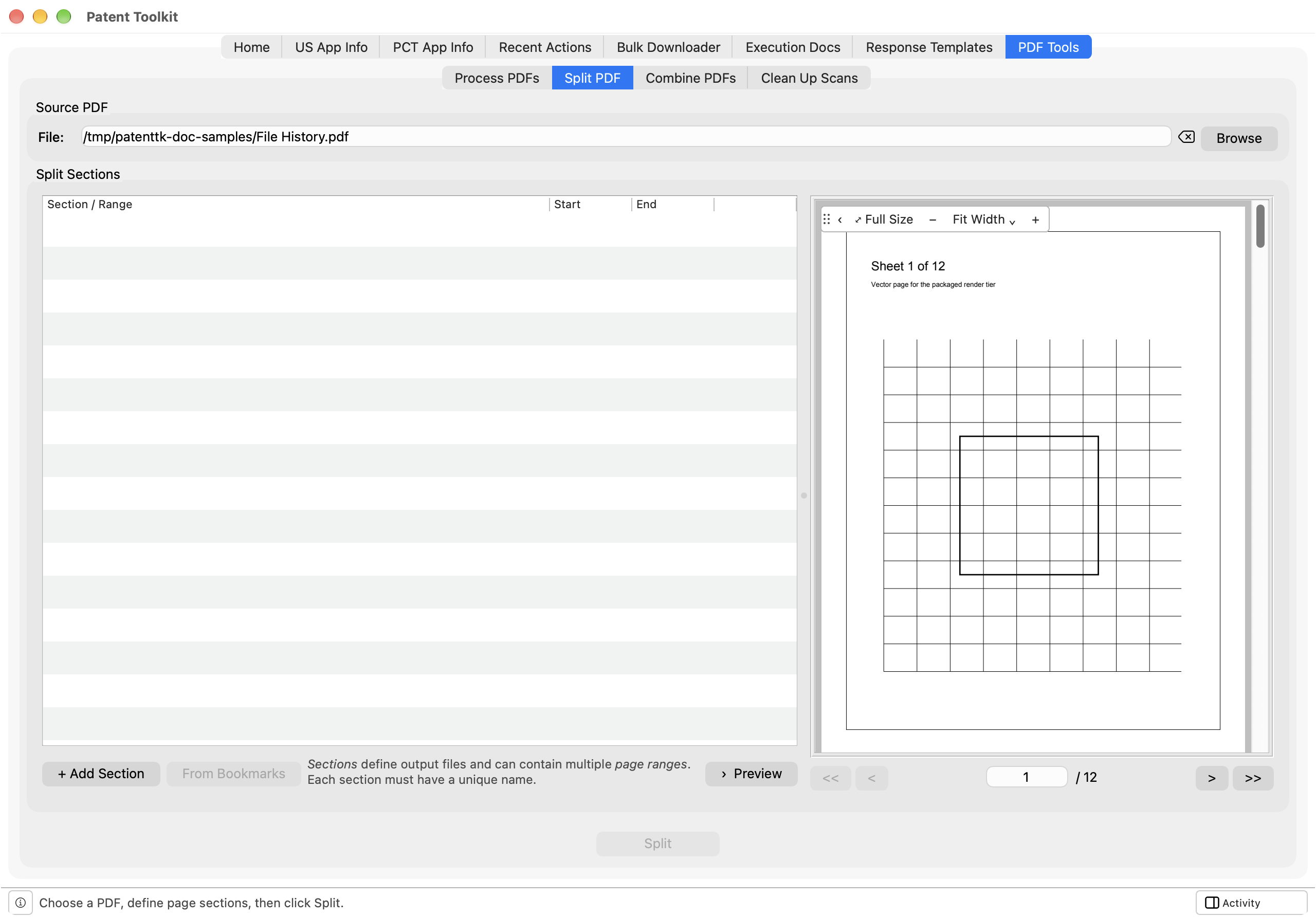
- Choose the PDF.
- Click + Add Section, or double-click empty space in the section list.
- Name the section and enter its start and end pages. Add further ranges within the section if its pages are not contiguous.
- Repeat for the remaining sections, then click Split and choose an output folder.
Use From Bookmarks to build sections from the PDF’s existing bookmarks, then review their names and ranges.
Section names become filenames: Claims produces Claims.pdf. Unnamed
sections are numbered. Names must be unique and cannot contain colons or
semicolons; each section must include at least one page.
Pages are written in document order, regardless of the order in which ranges were added. Repeating a page in the ranges does not duplicate it. The output retains bookmarks, page labels, and attachments from the source.
Combining
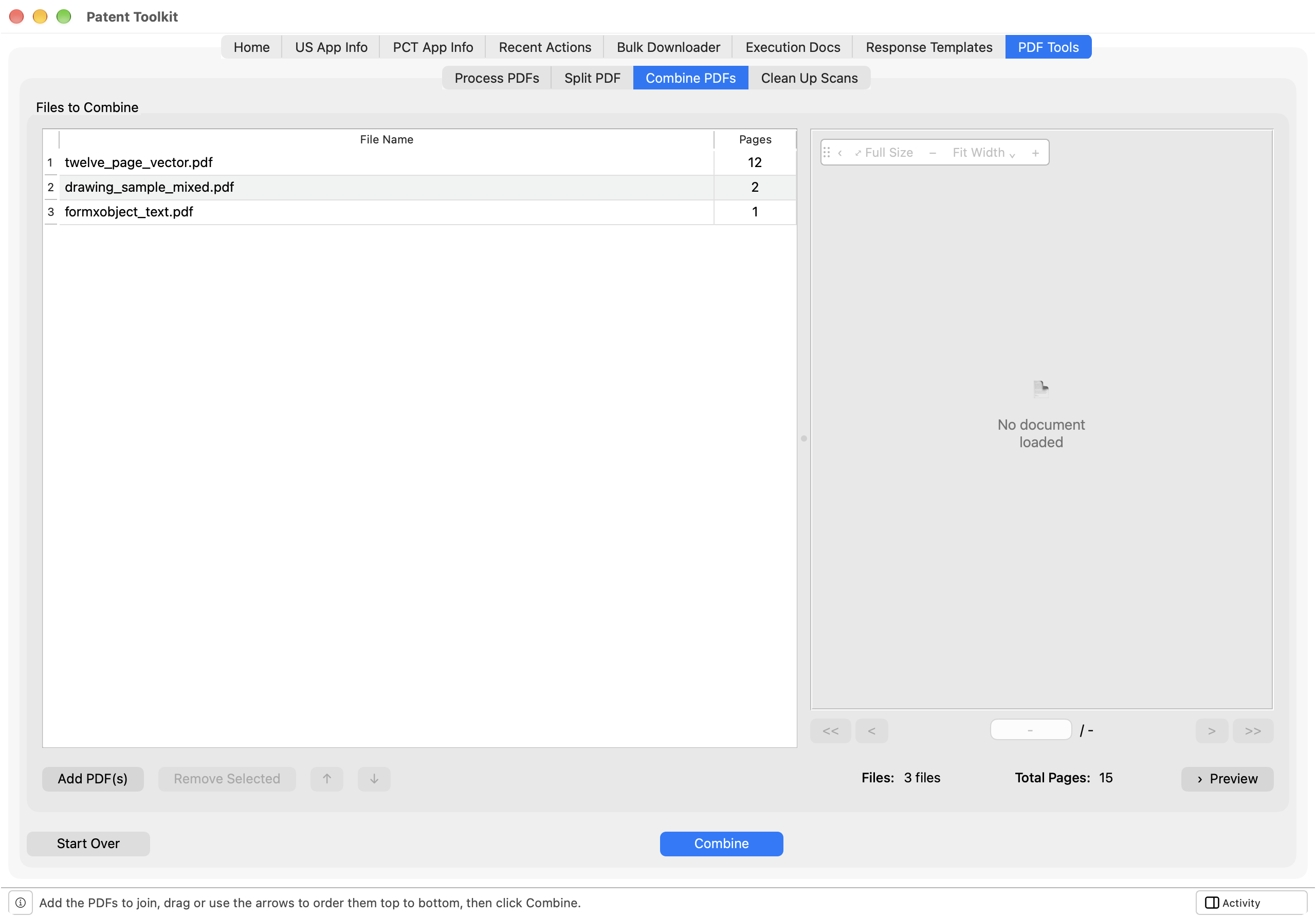
- Use Add PDF(s) or drag files onto the list.
- Preview the inputs and arrange them by dragging rows or using Up and Down.
- Click Combine and choose the output filename.
The result contains a bookmark for each input, named after its file. The first document supplies the output metadata, and its existing bookmarks are retained under its heading.
If an input is password-protected, unlock it in the preview, then add it again if needed.
Forms and saved results
Supported dynamic USPTO forms such as the ADS are rendered to their actual pages before splitting or combining. Their page count can therefore differ from a reader that displays only the “Please wait…” placeholder. Review the content and page ranges after the form loads.
Both tools write to the destination you choose. Their completed outputs also appear in Activity.
Troubleshooting
- Split is unavailable. Check that a PDF is loaded, each section has pages, and section names are unique. The status message identifies invalid input.
- A section contains unexpected pages. Check its start and end values; ranges are combined in document order without duplicate pages.
- A file cannot be added or processed. Check the error message. Unlock a password-protected file in the preview; for other read errors, try opening the original in a PDF reader.